
Create groups
Aim
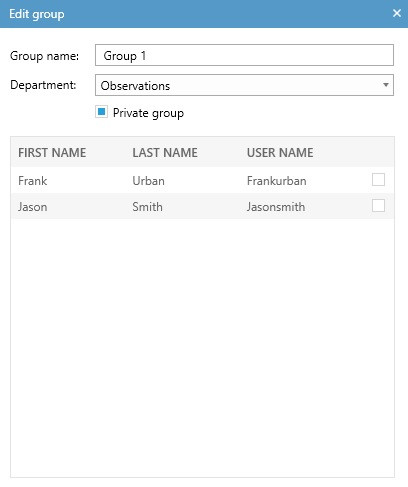
To give groups of users identical rights, for instance, permission to view your session live or to review it after it has been recorded. As a Trainer you can, for instance, create groups of students (Trainees).
Prerequisites
Your user role allows creating groups (Technician, Administrator, Trainer). allows creating groups.
Procedure
As an Administrator, you will not be able to add yourself to a public group; however, you can remove yourself from such groups, if you have been previously added. If you wish to be added to a public group, you will need to ask a Technician. Please note, however, that Technicians can only add users to a public group from the same department.Click Save.
NOTE To give other users rights, for instance, to view your session live or to review it afterwards, you have to invite them, please see Invite participants.
NOTE As a Trainer, you cannot edit the public groups created by other users; however, you can use these.