# Record sessions
### aim
To create recordings with all cameras in the selected locations.
Important
Do not log in with a browser to a camera, while recording with Viso. This may lead to malfunctioning of the Viso system.
### prerequisites
- Your user role allows session recording (Technician, Administrator, or Trainer).
- You have opened a location.
See [Select locations for recording](https://bookstack.noldus.com/link/735#bkmrk-page-title)
- You are satisfied with all settings.
See the third chapter of this Reference ([Prepare session recording](https://bookstack.noldus.com/link/719#bkmrk-page-title))
### procedure
1. If your license includes the [The Annotation Module](https://bookstack.noldus.com/link/743#bkmrk-page-title), optionally select a **Codes list**.
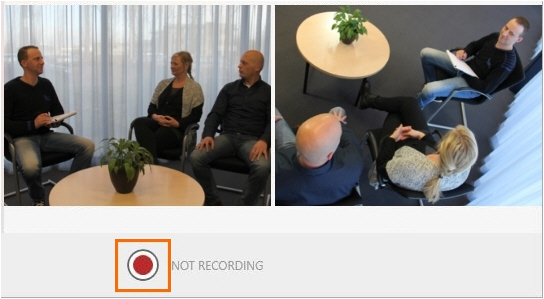
2. Click the record button at the bottom of your window.
[](https://bookstack.noldus.com/uploads/images/gallery/2023-12/CKv7iZsWVSjXwMuB-image.png)
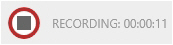
Next to the button the text **Recording** appears and the recording duration is shown.
[](https://bookstack.noldus.com/uploads/images/gallery/2023-12/ivKv3LBT5aSNCftB-image.png)
**TIP** It is also possible to [View locations and start and stop recording](https://bookstack.noldus.com/link/769#bkmrk-page-title) with a web browser. See the [The Viso Web App](https://bookstack.noldus.com/link/589#bkmrk-page-title).
3. Optionally, score events and make remarks (If you have [The Annotation Module](https://bookstack.noldus.com/link/743#bkmrk-page-title))
4. Optionally, talk to the people in the location with the[ Talk to people in location ](https://bookstack.noldus.com/link/724#bkmrk-page-title)functionality.
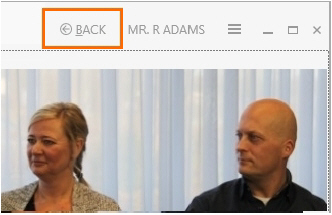
5. To start recording in other locations, click the **Back** button at the top of the window to return to the Viso start window. Repeat the steps above to start recording in other locations.
[](https://bookstack.noldus.com/uploads/images/gallery/2023-12/CBTAHE5jPUX4MvD9-image.png)
6. To stop recording, open the location if it is not already open.
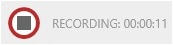
Then click the stop recording button.
[](https://bookstack.noldus.com/uploads/images/gallery/2023-12/sqvhurLF2Jgb0jZH-image.png)
**note** If you selected multiple locations for separate or composite session recording, pressing the stop recording button in one location, stops recording in all locations.
7. A question appears whether you want to stop the session. Click **Yes**. The following steps depend on whether you recorded a single session, selected multiple locations for separate sessions, or selected multiple locations for a composite session.
### If you recorded a single session
- If you did not specify a default session name, a **Save session** window appears. Enter a name and click **Save session**.
- If you specified a default session name, the session automatically gets this name followed by a consecutive number.
- If you selected the option to edit the default session name before saving, each session automatically gets the same default name. Optionally, edit this name before you save it.
See also [Specify a default session name](https://bookstack.noldus.com/link/725#bkmrk-page-title)
### If you started recording in multiple locations manually
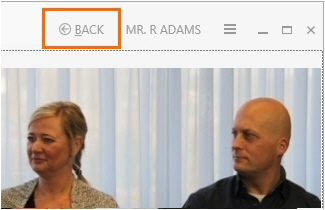
You must stop recording in each location separately. After stopping a session, click the back button on the toolbar and open the next location to stop recording there.
[](https://bookstack.noldus.com/uploads/images/gallery/2023-12/Vfd3SwK8NAdwaH9i-image.png)
See [If you recorded a single session](https://bookstack.noldus.com/link/736#bkmrk-page-title) how session naming is done.
### If you selected multiple locations for separate session recording
- If you did not specify a default session name, a **Save session** window appears once. Enter a name and click **Save session**. Each session gets the same name.
- If you specified a default session name, each session automatically gets this name followed by the same consecutive number.
- If you selected the option to edit the default session name before saving, each session automatically gets the same default name. Optionally, edit this name before you save.
See [Select multiple locations to record separate sessions for each location](https://bookstack.noldus.com/link/737#bkmrk-page-title)
### If you selected multiple locations for a composite session recording
The result of your recording is a single session. See [If you recorded a single session](https://bookstack.noldus.com/link/736#bkmrk-page-title) how session naming is done.
See [Select multiple locations to record a composite session](https://bookstack.noldus.com/link/738#bkmrk-page-title)
## Notes
- Session recording can only be stopped by the user that started the recording, or by a Technician.
- You can also [View locations and start and stop recording](https://bookstack.noldus.com/link/769#bkmrk-page-title) with a web browser. See [The Viso Web App](https://bookstack.noldus.com/link/589#bkmrk-page-title),
- Recording stops automatically if the computer that stores the video files runs out of disc space. This is shown in the session name. Contact your colleague who manages the Viso set-up if this happens.
- If you log out while a session is recorded, recording continues, even if you shut down the computer with Viso. Log in again to stop the recording.
- The **Status** column in the **Locations** tab shows in which locations recording takes place by which user. Locations that are locked or in which recording takes place can be opened and viewed by others if they have the rights to. However, session recording is disabled for those users. Locations that are offline are not selected for recording by your colleague who has the user role Technician.[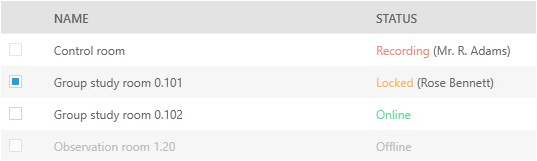](https://bookstack.noldus.com/uploads/images/gallery/2023-12/HfRB61aLMFfkCtOS-image.png)
**TIP** Click one of the column headers to sort the locations by name or status, for example to list all locations in which recording takes place in the first lines of the table.
- There can be multiple sessions with the same name. Sessions with the same name can be distinguished in the sessions list by the recording date and time.
See [Review sessions](https://bookstack.noldus.com/link/740#bkmrk-page-title)