# Highlight videos

### aim

<span lang="EN-GB" style="font-size: 11.0pt; line-height: 107%; font-family: 'Calibri',sans-serif; mso-ascii-theme-font: minor-latin; mso-fareast-font-family: Calibri; mso-fareast-theme-font: minor-latin; mso-hansi-theme-font: minor-latin; mso-bidi-font-family: 'Times New Roman'; mso-bidi-theme-font: minor-bidi; mso-ansi-language: EN-GB; mso-fareast-language: EN-US; mso-bidi-language: AR-SA;">To select specific point events of interest within sessions and create highlight videos containing these, optionally with subtitles, for further use.</span>

### prerequisites

<span lang="EN-GB" style="mso-ansi-language: EN-GB;">Your license includes the Annotation Module.</span>

<span lang="EN-GB" style="font-size: 11.0pt; line-height: 107%; font-family: 'Calibri',sans-serif; mso-ascii-theme-font: minor-latin; mso-fareast-font-family: Calibri; mso-fareast-theme-font: minor-latin; mso-hansi-theme-font: minor-latin; mso-bidi-font-family: 'Times New Roman'; mso-bidi-theme-font: minor-bidi; mso-ansi-language: EN-GB; mso-fareast-language: EN-US; mso-bidi-language: AR-SA;">The session has been recorded and you received ownership rights for the session.</span>

### procedure

1. <span lang="EN-GB" style="font-size: 11.0pt; line-height: 107%; font-family: 'Calibri',sans-serif; mso-ascii-theme-font: minor-latin; mso-fareast-font-family: Calibri; mso-fareast-theme-font: minor-latin; mso-hansi-theme-font: minor-latin; mso-bidi-font-family: 'Times New Roman'; mso-bidi-theme-font: minor-bidi; mso-ansi-language: EN-GB; mso-fareast-language: EN-US; mso-bidi-language: AR-SA;">Open the Sessions tab.</span>
2. <span lang="EN-GB" style="font-size: 11.0pt; line-height: 107%; font-family: 'Calibri',sans-serif; mso-ascii-theme-font: minor-latin; mso-fareast-font-family: Calibri; mso-fareast-theme-font: minor-latin; mso-hansi-theme-font: minor-latin; mso-bidi-font-family: 'Times New Roman'; mso-bidi-theme-font: minor-bidi; mso-ansi-language: EN-GB; mso-fareast-language: EN-US; mso-bidi-language: AR-SA;">Double-click a session to open it.</span>
3. <span lang="EN-GB" style="font-size: 11.0pt; line-height: 107%; font-family: 'Calibri',sans-serif; mso-ascii-theme-font: minor-latin; mso-fareast-font-family: Calibri; mso-fareast-theme-font: minor-latin; mso-hansi-theme-font: minor-latin; mso-bidi-font-family: 'Times New Roman'; mso-bidi-theme-font: minor-bidi; mso-ansi-language: EN-GB; mso-fareast-language: EN-US; mso-bidi-language: AR-SA;">Right-click anywhere in the <span style="color: #4472c4; mso-themecolor: accent1;">[Timeline](https://bookstack.noldus.com/link/746#bkmrk-timeline)</span> or click on the **Export highlight video** button in the top right corner of the Timeline.</span><span lang="EN-GB" style="font-size: 11.0pt; line-height: 107%; font-family: 'Calibri',sans-serif; mso-ascii-theme-font: minor-latin; mso-fareast-font-family: Calibri; mso-fareast-theme-font: minor-latin; mso-hansi-theme-font: minor-latin; mso-bidi-font-family: 'Times New Roman'; mso-bidi-theme-font: minor-bidi; mso-ansi-language: EN-GB; mso-fareast-language: EN-US; mso-bidi-language: AR-SA;">[![export hoghlight video button.jpg](https://bookstack.noldus.com/uploads/images/gallery/2024-02/scaled-1680-/XViYBO1oKN3Mx8ym-export-hoghlight-video-button.jpg)](https://bookstack.noldus.com/uploads/images/gallery/2024-02/XViYBO1oKN3Mx8ym-export-hoghlight-video-button.jpg)</span>
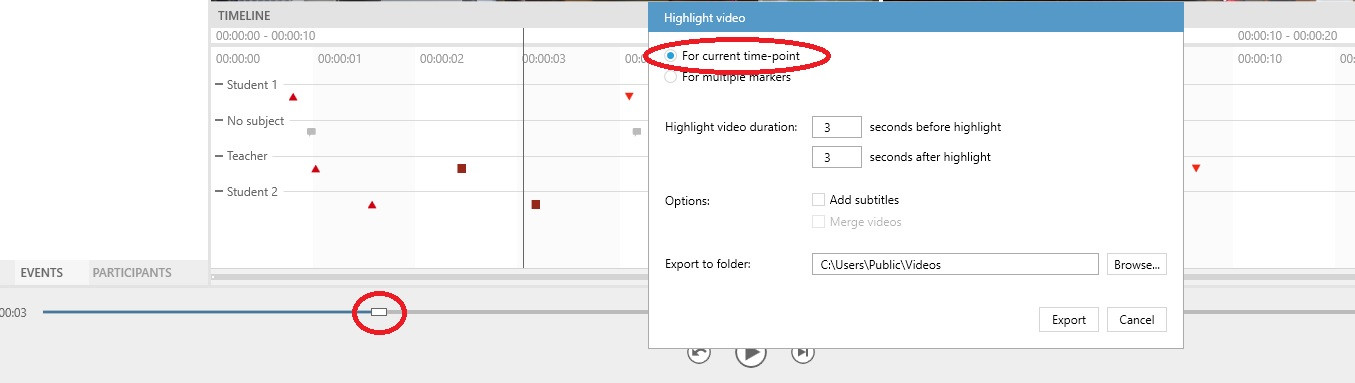
4. <span lang="EN-GB" style="font-size: 11.0pt; line-height: 107%; font-family: 'Calibri',sans-serif; mso-ascii-theme-font: minor-latin; mso-fareast-font-family: Calibri; mso-fareast-theme-font: minor-latin; mso-hansi-theme-font: minor-latin; mso-bidi-font-family: 'Times New Roman'; mso-bidi-theme-font: minor-bidi; mso-ansi-language: EN-GB; mso-fareast-language: EN-US; mso-bidi-language: AR-SA;">In the **Highlight video** window, you have two options to select the point event(s) of the session you wish to include in your highlight video. For a single event, move the Time slider to or near to the particular point event of interest and select **For current time point**. Continue with Step 7.![for current timepoint.jpg](https://bookstack.noldus.com/uploads/images/gallery/2024-02/scaled-1680-/5rvs4BJKgTvvTcDx-for-current-timepoint.jpg)</span><span lang="EN-GB" style="mso-ansi-language: EN-GB;">  
    </span>
    
    <span lang="EN-GB" style="font-size: 11.0pt; line-height: 107%; font-family: 'Calibri',sans-serif; mso-ascii-theme-font: minor-latin; mso-fareast-font-family: Calibri; mso-fareast-theme-font: minor-latin; mso-hansi-theme-font: minor-latin; mso-bidi-font-family: 'Times New Roman'; mso-bidi-theme-font: minor-bidi; mso-ansi-language: EN-GB; mso-fareast-language: EN-US; mso-bidi-language: AR-SA;"> If the point events of interest are associated with some or all of the markers you have specified in the Code list you used to annotate your session <span style="mso-spacerun: yes;"> </span>(see [<span style="color: #4472c4; mso-themecolor: accent1;">Create Code Lists</span>](https://bookstack.noldus.com/link/745#bkmrk-page-title) and [<span style="color: #4472c4; mso-themecolor: accent1;">Annotate</span>](https://bookstack.noldus.com/link/746#bkmrk-page-title)) select **For multiple markers**. Continue with Step 5.[![for multiple markers.jpg](https://bookstack.noldus.com/uploads/images/gallery/2024-02/scaled-1680-/32zK3jQKDEKkYkft-for-multiple-markers.jpg)](https://bookstack.noldus.com/uploads/images/gallery/2024-02/32zK3jQKDEKkYkft-for-multiple-markers.jpg)</span>
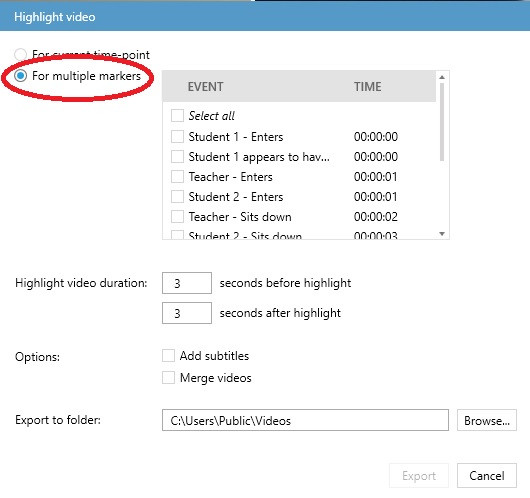
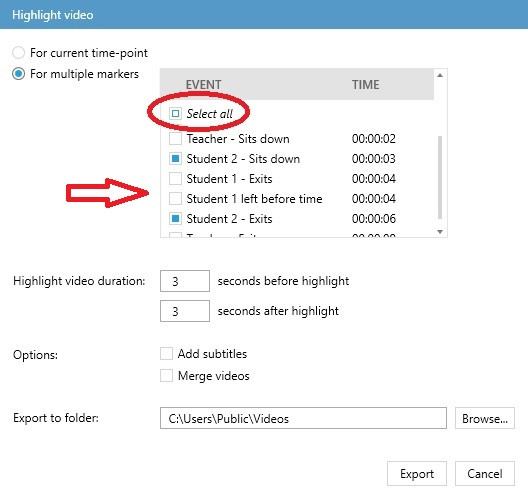
5. <span lang="EN-GB" style="font-size: 11.0pt; line-height: 107%; font-family: 'Calibri',sans-serif; mso-ascii-theme-font: minor-latin; mso-fareast-font-family: Calibri; mso-fareast-theme-font: minor-latin; mso-hansi-theme-font: minor-latin; mso-bidi-font-family: 'Times New Roman'; mso-bidi-theme-font: minor-bidi; mso-ansi-language: EN-GB; mso-fareast-language: EN-US; mso-bidi-language: AR-SA;">If you have opted for **For multiple markers**, a window appears where you can select the point events you wish to highlight. You may select as many of these as you wish by checking the relevant boxes, or select them all using the **Select all** checkbox.</span>[![select multiple markers.jpg](https://bookstack.noldus.com/uploads/images/gallery/2024-02/scaled-1680-/LoSdedJCmzxWNjET-select-multiple-markers.jpg)](https://bookstack.noldus.com/uploads/images/gallery/2024-02/LoSdedJCmzxWNjET-select-multiple-markers.jpg)
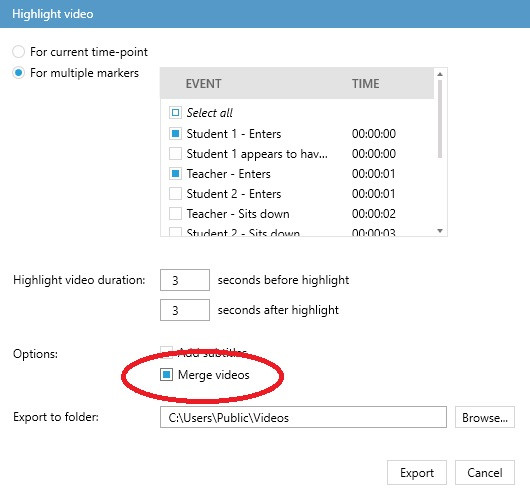
6. <span lang="EN-GB" style="font-size: 11.0pt; line-height: 107%; font-family: 'Calibri',sans-serif; mso-ascii-theme-font: minor-latin; mso-fareast-font-family: Calibri; mso-fareast-theme-font: minor-latin; mso-hansi-theme-font: minor-latin; mso-bidi-font-family: 'Times New Roman'; mso-bidi-theme-font: minor-bidi; mso-ansi-language: EN-GB; mso-fareast-language: EN-US; mso-bidi-language: AR-SA;">If you wish to merge all your highlighted point events into a single video, use the **Merge videos** option.</span>[![merge vdeos.jpg](https://bookstack.noldus.com/uploads/images/gallery/2024-02/scaled-1680-/rsWq3kZBQ6aV384r-merge-vdeos.jpg)](https://bookstack.noldus.com/uploads/images/gallery/2024-02/rsWq3kZBQ6aV384r-merge-vdeos.jpg)
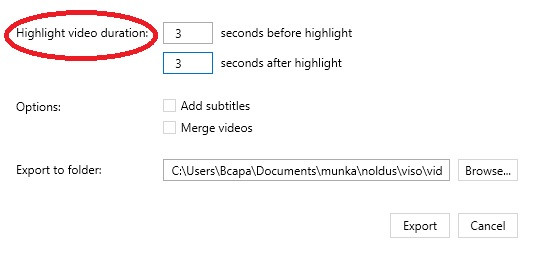
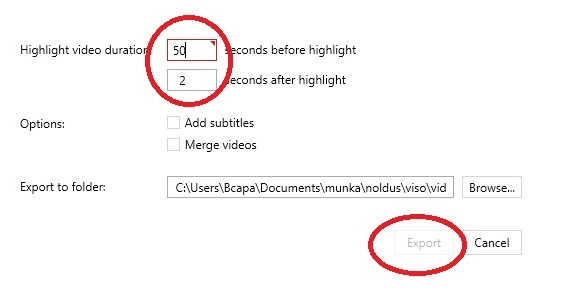
7. <span lang="EN-GB" style="font-size: 11.0pt; line-height: 107%; font-family: 'Calibri',sans-serif; mso-ascii-theme-font: minor-latin; mso-fareast-font-family: Calibri; mso-fareast-theme-font: minor-latin; mso-hansi-theme-font: minor-latin; mso-bidi-font-family: 'Times New Roman'; mso-bidi-theme-font: minor-bidi; mso-ansi-language: EN-GB; mso-fareast-language: EN-US; mso-bidi-language: AR-SA;">Use the **Highlight video duration** option to set the length of the section including the selected point event. By default, 3 seconds will be added before and after the highlighted point event, but you may adjust this value up to 30 seconds before and 30 seconds after the selected event.</span><span lang="EN-GB" style="font-size: 11.0pt; line-height: 107%; font-family: 'Calibri',sans-serif; mso-ascii-theme-font: minor-latin; mso-fareast-font-family: Calibri; mso-fareast-theme-font: minor-latin; mso-hansi-theme-font: minor-latin; mso-bidi-font-family: 'Times New Roman'; mso-bidi-theme-font: minor-bidi; mso-ansi-language: EN-GB; mso-fareast-language: EN-US; mso-bidi-language: AR-SA;"> If you select an invalid duration, the box will be marked in red and you will not be offered the **Export** option.</span>**![highlight video duration.jpg](https://bookstack.noldus.com/uploads/images/gallery/2024-02/scaled-1680-/5JQGWP0tgiDGazjC-highlight-video-duration.jpg)**![highlight video duration2.jpg](https://bookstack.noldus.com/uploads/images/gallery/2024-02/scaled-1680-/isfQYcKoviLPACzR-highlight-video-duration2.jpg)**<span lang="EN-GB" style="font-size: 11.0pt; line-height: 107%; font-family: 'Calibri',sans-serif; mso-ascii-theme-font: minor-latin; mso-fareast-font-family: Calibri; mso-fareast-theme-font: minor-latin; mso-hansi-theme-font: minor-latin; mso-bidi-font-family: 'Times New Roman'; mso-bidi-theme-font: minor-bidi; mso-ansi-language: EN-GB; mso-fareast-language: EN-US; mso-bidi-language: AR-SA;"> </span>**

**<span lang="EN-GB" style="font-size: 11.0pt; line-height: 107%; font-family: 'Calibri',sans-serif; mso-ascii-theme-font: minor-latin; mso-fareast-font-family: Calibri; mso-fareast-theme-font: minor-latin; mso-hansi-theme-font: minor-latin; mso-bidi-font-family: 'Times New Roman'; mso-bidi-theme-font: minor-bidi; mso-ansi-language: EN-GB; mso-fareast-language: EN-US; mso-bidi-language: AR-SA;">NOTE </span>**<span lang="EN-GB" style="font-size: 11.0pt; line-height: 107%; font-family: 'Calibri',sans-serif; mso-ascii-theme-font: minor-latin; mso-fareast-font-family: Calibri; mso-fareast-theme-font: minor-latin; mso-hansi-theme-font: minor-latin; mso-bidi-font-family: 'Times New Roman'; mso-bidi-theme-font: minor-bidi; mso-ansi-language: EN-GB; mso-fareast-language: EN-US; mso-bidi-language: AR-SA;">The Highlight video duration set by you will also include the previously set Pre-roll value. (See [<span style="color: #4472c4; mso-themecolor: accent1;">Review sessions</span>](https://bookstack.noldus.com/link/740#bkmrk-page-title).)</span>

<span lang="EN-GB" style="font-size: 11.0pt; line-height: 107%; font-family: 'Calibri',sans-serif; mso-ascii-theme-font: minor-latin; mso-fareast-font-family: Calibri; mso-fareast-theme-font: minor-latin; mso-hansi-theme-font: minor-latin; mso-bidi-font-family: 'Times New Roman'; mso-bidi-theme-font: minor-bidi; mso-ansi-language: EN-GB; mso-fareast-language: EN-US; mso-bidi-language: AR-SA;">**NOTE** If the Highlight video duration set by you exceeds the length of the session, the resulting Highlight video will include the highlighted event more than once, so it is recommended to set the duration shorter than the lenghth of the session.</span>

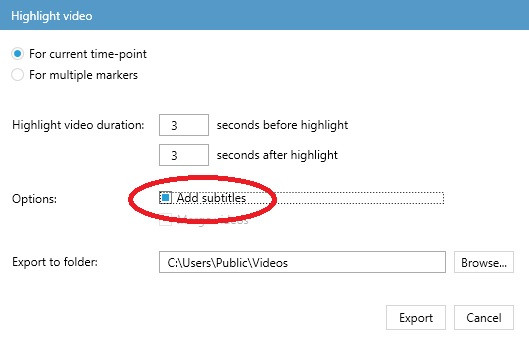
<span lang="EN-GB" style="mso-ansi-language: EN-GB;">**8.** If you wish to add subtitles, check the **Add subtitles** box at **Options**. [![add subtitles.jpg](https://bookstack.noldus.com/uploads/images/gallery/2024-02/scaled-1680-/fqoerBcq8u2buwhs-add-subtitles.jpg)](https://bookstack.noldus.com/uploads/images/gallery/2024-02/fqoerBcq8u2buwhs-add-subtitles.jpg) <span style="mso-spacerun: yes;"> </span>The Subtitles will comprise of the names of the highlighted Events and Subjects involved (see [<span style="color: #4472c4; mso-themecolor: accent1;">Create Code Lists</span>](https://bookstack.noldus.com/link/745#bkmrk-page-title)) as well as any Remark you might have added (see [<span style="color: #4472c4; mso-themecolor: accent1;">Enter a remark</span>](https://bookstack.noldus.com/link/747#bkmrk-page-title)). </span>
<span lang="EN-GB" style="mso-ansi-language: EN-GB;"><span lang="EN-GB" style="font-size: 11.0pt; line-height: 107%; font-family: 'Calibri',sans-serif; mso-ascii-theme-font: minor-latin; mso-fareast-font-family: Calibri; mso-fareast-theme-font: minor-latin; mso-hansi-theme-font: minor-latin; mso-bidi-font-family: 'Times New Roman'; mso-bidi-theme-font: minor-bidi; mso-ansi-language: EN-GB; mso-fareast-language: EN-US; mso-bidi-language: AR-SA;">**IMPORTANT**</span> Your subtitles will be saved in a separate vtt file so that you can edit them later if you wish. When reviewing your Highlight video, you will need to select the relevant vtt file and turn on the subtitles. For the details, see [Adding subtitles to your hightlight videos](https://bookstack.noldus.com/link/781#bkmrk-adding-subtitles-to-).  
</span>

<span lang="EN-GB" style="font-size: 11.0pt; line-height: 107%; font-family: 'Calibri',sans-serif; mso-ascii-theme-font: minor-latin; mso-fareast-font-family: Calibri; mso-fareast-theme-font: minor-latin; mso-hansi-theme-font: minor-latin; mso-bidi-font-family: 'Times New Roman'; mso-bidi-theme-font: minor-bidi; mso-ansi-language: EN-GB; mso-fareast-language: EN-US; mso-bidi-language: AR-SA;"> </span>

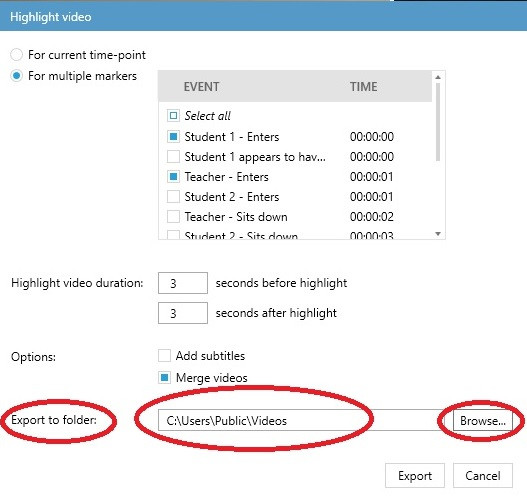
<span lang="EN-GB" style="mso-ansi-language: EN-GB;">**9.** At **Export to folder**, select the folder where you wish to save your Highlight video. Viso offers you a default option, but you are also free to **Browse**. </span>

**<span lang="EN-GB" style="mso-ansi-language: EN-GB;"> [![browse.jpg](https://bookstack.noldus.com/uploads/images/gallery/2024-02/scaled-1680-/NnBbwbDTkDzRw3Nh-browse.jpg)](https://bookstack.noldus.com/uploads/images/gallery/2024-02/NnBbwbDTkDzRw3Nh-browse.jpg)</span>**

**<span lang="EN-GB" style="mso-ansi-language: EN-GB;">NOTE</span>**<span lang="EN-GB" style="mso-ansi-language: EN-GB;"> If more than one cameras were used for recording the original session, a separate highlight video will be created for each, with the same subtitles.</span>

<span lang="EN-GB" style="font-size: 11.0pt; line-height: 107%; font-family: 'Calibri',sans-serif; mso-ascii-theme-font: minor-latin; mso-fareast-font-family: Calibri; mso-fareast-theme-font: minor-latin; mso-hansi-theme-font: minor-latin; mso-bidi-font-family: 'Times New Roman'; mso-bidi-theme-font: minor-bidi; mso-ansi-language: EN-GB; mso-fareast-language: EN-US; mso-bidi-language: AR-SA;">**NOTE** Viso will create a unique default name for the highlight video for exporting which you cannot change. If you have created subtitles, the vtt file containing these will be given the same unique default name.  
</span>

<span lang="EN-GB" style="font-size: 11.0pt; line-height: 107%; font-family: 'Calibri',sans-serif; mso-ascii-theme-font: minor-latin; mso-fareast-font-family: Calibri; mso-fareast-theme-font: minor-latin; mso-hansi-theme-font: minor-latin; mso-bidi-font-family: 'Times New Roman'; mso-bidi-theme-font: minor-bidi; mso-ansi-language: EN-GB; mso-fareast-language: EN-US; mso-bidi-language: AR-SA;">**10.** Once you have made all the necessary settings, press the **Export** button.[![export.jpg](https://bookstack.noldus.com/uploads/images/gallery/2024-02/scaled-1680-/Pd2vlUXx0N4Kt6wL-export.jpg)](https://bookstack.noldus.com/uploads/images/gallery/2024-02/Pd2vlUXx0N4Kt6wL-export.jpg)</span>
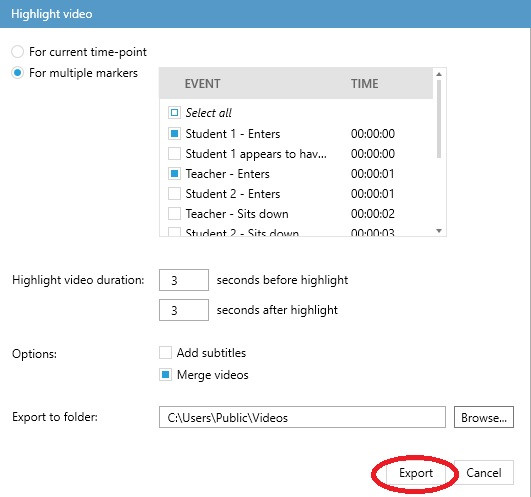
**NOTE** I<span lang="EN-GB" style="font-size: 11.0pt; line-height: 107%; font-family: 'Calibri',sans-serif; mso-ascii-theme-font: minor-latin; mso-fareast-font-family: Calibri; mso-fareast-theme-font: minor-latin; mso-hansi-theme-font: minor-latin; mso-bidi-font-family: 'Times New Roman'; mso-bidi-theme-font: minor-bidi; mso-ansi-language: EN-GB; mso-fareast-language: EN-US; mso-bidi-language: AR-SA;">f you wish to rename the exported highlight video file, you will need to do it later, in the folder. When doing so</span><span lang="EN-GB" style="font-size: 11.0pt; line-height: 107%; font-family: 'Calibri',sans-serif; mso-ascii-theme-font: minor-latin; mso-fareast-font-family: Calibri; mso-fareast-theme-font: minor-latin; mso-hansi-theme-font: minor-latin; mso-bidi-font-family: 'Times New Roman'; mso-bidi-theme-font: minor-bidi; mso-ansi-language: EN-GB; mso-fareast-language: EN-US; mso-bidi-language: AR-SA;">, it is recommended to give the highlight videos and the related vtt files with the subtiles (if you created any) the same name to facilitate the easy adding of subtitles when reviewing the videos later on.</span>

### Adding subtitles to your highlight videos  


As mentioned above, your highlight videos and the related subtitles will be saved in separate files. When you wish to see the subtitles while reviewing your highlight video, you will need to select the relevant vtt file containing the subtitles and enable the subtitles function.

### procedure

1. Open your highlight video e.g. in Windows Media Player or PowerPoint.
2. Look for the icon where you can set the languages and subtitles for your video.[![subtitles1.jpg](https://bookstack.noldus.com/uploads/images/gallery/2024-03/scaled-1680-/snU87IkvJd4Vnhxv-subtitles1.jpg)](https://bookstack.noldus.com/uploads/images/gallery/2024-03/snU87IkvJd4Vnhxv-subtitles1.jpg)
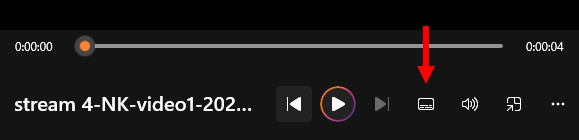
3. You will be offered a choice of selecting the subtitles from file. Select the relevant vtt file and click **Open.** Now the subtitles you created will be displayed under your video.

**NOTE** If you wish to edit your subtitles, you can do it by opening the vtt file in a text editor and make the desired changes.

**IMPORTANT** When you copy your highlight videos to a different folder, please remember to copy the related vtt files together with them.