# Export sessions in Viso and import them in The Observer XT
### aim
To import Viso sessions in The Observer XT if the computers with Viso and The Observer XT are not in the same network, or you have an older version of The Observer XT (see [Prerequisites](https://bookstack.noldus.com/link/762#bkmrk-prerequisites) to [Import sessions directly](https://bookstack.noldus.com/link/762#bkmrk-page-title)).
### prerequisites
- You have a license for The Observer XT.
- You recorded the sessions (Trainer), received session ownership or invitations to view the sessions or your user role is Administrator or Technician.
### procedure
### In Viso:
1. Open the **Sessions** tab.
2. Right-click a session and select **Export to The Observer XT**.
[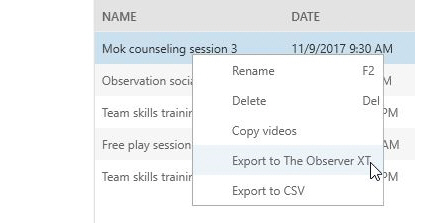](https://bookstack.noldus.com/uploads/images/gallery/2023-12/FSj93w5j9LtpUn4p-image.png)
3. Specify the destination folder that can be accessed by The Observer XT, for example its **Video Files **folder.
4. 4.Select if you want to export the separate videos, or combine all videos into one picture-by-picture video per location.
5. Click **Export**.
[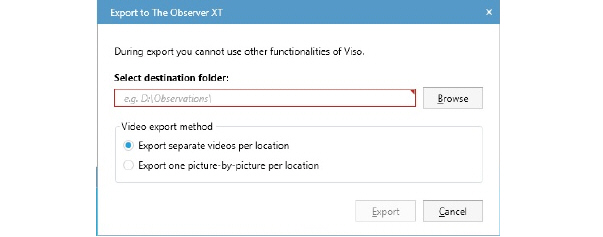](https://bookstack.noldus.com/uploads/images/gallery/2023-12/rU3Qd3qGFm8nMauL-image.png)
You will find the exported videos and the .odx file containing scored markers and comments in the destination folder.
### In The Observer XT:
6. Create a new project or open an existing one (**File> New/Open Project**).
7. Import the .odx file as a new observation. Choose **File > Import > Observational data**.
[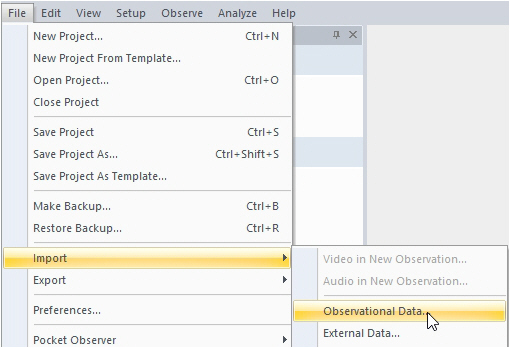](https://bookstack.noldus.com/uploads/images/gallery/2023-12/R8tJPaOcK4Qqg0dX-image.png)
8. Select the .odx file and click **Open**.
9. In the **Import Observational Data** window that appears, select **Yes, import new coding scheme elements**.
10. A message appears whether import is successful. Click **Close**.
## Notes
- Session export to The Observer XT, copies the videos and exports the session as an \*.odx file to the specified location.
- If you cannot export the sessions to a location that can be accessed by The Observer XT, you need to copy the files to a location that can. Make sure you copy both the .odx file and the videos to the same location. Do not import the .odx file from, for example, a USB stick, because The Observer XT then will not have access to the videos once the USB stick is removed.
- The videos are automatically linked to the imported observation.
- Subjects and Markers are added to the coding scheme and remarks appear as comments in the Event log.
See also [How Viso annotations appear in The Observer XT](https://bookstack.noldus.com/link/764#bkmrk-page-title)
- The observation is named after the imported session, with the location name and the date time the session was created added to the filename.
- It is also possible to import Viso sessions into an existing observation. For example if you already carried out an observation with the Viso videos. To do so, open the observation and click the **Import data** button on the toolbar.
[](https://bookstack.noldus.com/uploads/images/gallery/2023-12/n7C3bHTW6Y7tR6En-image.png)
Choose **Import observational data**, select the .odx file and click **Open**.