# Create Codes Lists
### aim
To specify the events of interest for your study. Subjects and markers are organized in codes lists. Each list can contain maximally 36 subjects and 36 markers.
### prerequisites
- Your license includes the Annotation Module.
- Your user role allows creating codes lists (Technician, Administrator, or Trainer).
### procedure
1. Open the **Codes** tab.
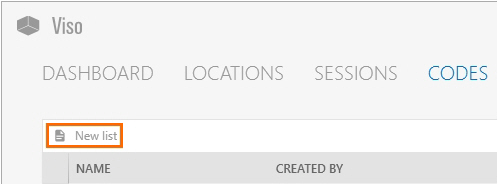
2. Click **New List**.
[](https://bookstack.noldus.com/uploads/images/gallery/2023-12/40D718yjB2A4oRhU-image.png)
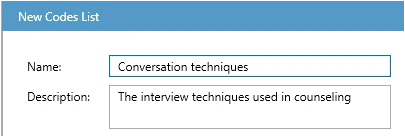
3. Name the list and, optionally, add a description.
[](https://bookstack.noldus.com/uploads/images/gallery/2023-12/Na0weWWloQXXE7CP-image.png)
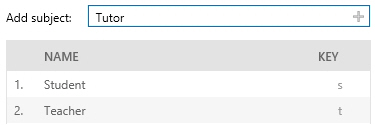
4. Optionally, add subjects by entering them in the **Add subject** field and clicking the + button, or pressing the **Enter** key.
[](https://bookstack.noldus.com/uploads/images/gallery/2023-12/wWvKlaWGbsQZdOVJ-image.png)
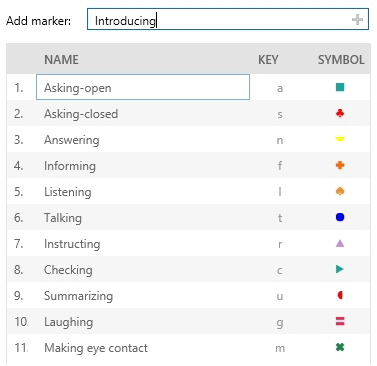
5. Add markers by entering them in the **Add marker** field and clicking the + button, or pressing the **Enter** key.
[](https://bookstack.noldus.com/uploads/images/gallery/2023-12/vTg41k9PUFky2bpZ-image.png)
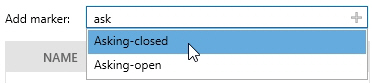
If you already created other codes lists, the name of similar elements appear if you enter the first letter in the **Add subject** or **Add marker** field. Select the subject or marker you want to add to the list.
[](https://bookstack.noldus.com/uploads/images/gallery/2023-12/w0bwuuyixqwe2gsa-image.png)
### Notes
- New subjects automatically get a key code. New markers automatically get a key code, shape and color. Within one list, a key code can only be used once. The key code is by default the first letter from the subject or marker name that has not been used for other markers in the same list yet. You can change the key code, shape and color manually.
- To change the order of subjects and markers in the codes list, drag and drop them.
- Codes lists cannot be edited, to ensure that they contain the same markers in all the sessions in which you use this list. You can duplicate and then edit a list and save it with another name. To do so, right-click a list in the **Markers** tab and select **Copy and edit**.
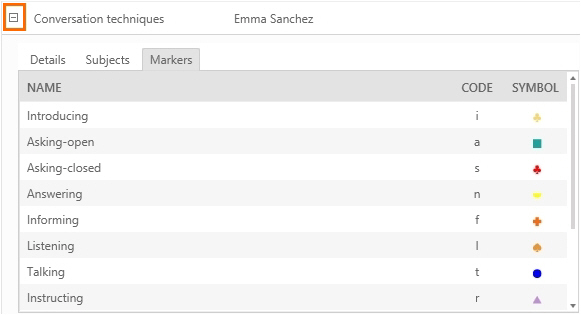
- To view details of a **Codes** list, open the Codes tab and click the + button in front of it to unfold the item.
[](https://bookstack.noldus.com/uploads/images/gallery/2023-12/aXwWTIoNoKX86vBN-image.png)