# Create and edit groups
### aim
To give groups of users identical rights, for instance, permission to view your session live or to review it after it has been recorded. As a Trainer you can, for instance, create groups of students (Trainees).
### prerequisites
Your user role (Technician, Administrator, Trainer) allows creating groups.
### procedure
1. Click the menu button and choose **Groups**.
2. If you wish to create a new group, click **Add group** and enter a name for the group of users. If you wish to edit an existing group, click on the editing icon in its row.[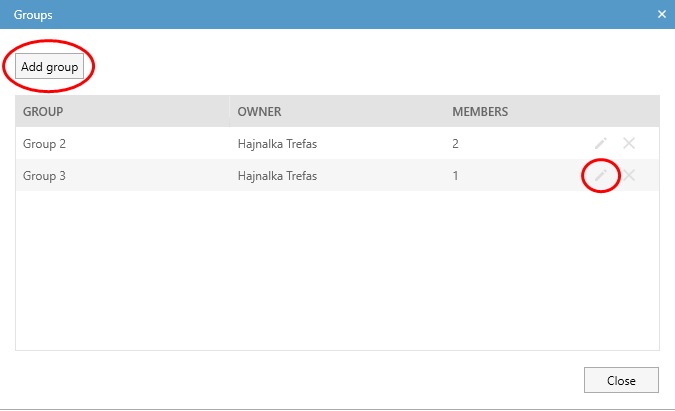](https://bookstack.noldus.com/uploads/images/gallery/2024-02/3pGr4fSv0QGyXqju-add-edit-group.jpg)
3. Select whether the group is private or not. If you want, for instance, Trainer B to see your groups, make the groups public (leave the **Private group** checkbox unselected) and make Trainer B a group member. Trainer B can then invite your groups to view his/her sessions.
4. Select the **Department** where your group will belong.
5. From the list of users within the chosen Department, select the ones you want to add to the group, using the checkboxes. For multiple selection, use the Ctrl or the Shift key the usual way and then press the space key. It will change the status of the checkboxes of all the selected users. When you wish to remove users from a group, follow the same steps and uncheck the relevant boxes. Please note the following:
- As an Administrator or Trainer, you will only see the users of your own department
- As an Administrator, you will not be able to add yourself to a public group; however, you can remove yourself from such groups, if you have been previously added. If you wish to be added to a public group, you will need to ask a Technician. Please note, however, that Technicians can only add users to a public group from the same department.
6. Click **Save.**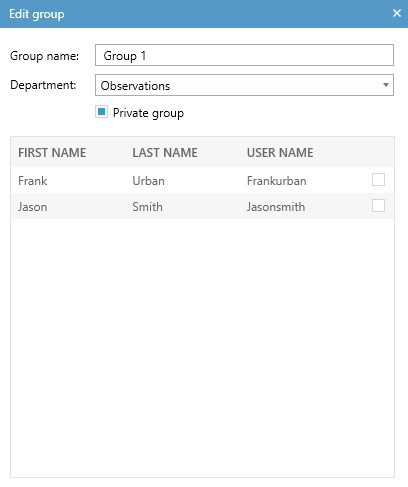
**NOTE** To give other users rights, for instance, to view your session live or to review it afterwards, you have to invite them, please see [Invite participants](https://bookstack.noldus.com/link/727#bkmrk-page-title).
**NOTE** As a Trainer, you cannot edit the public groups created by other users; however, you can use these.