# Viso with The Observer XT
# Start and stop recording in Viso from The Observer XT
Combining your Viso recordings with other data may give you a more complete picture of the phenomena that you are studying. For instance, when testing your newly developed website, it may be interesting to record the test participant’s screen and annotate his/her verbal reactions but it may be even more intriguing to know what facial expressions your website evokes or what physiological responses. For the integration of all these data you can use The Observer XT.
You can automatically start and stop recording in Viso from The Observer XT and at the same time start facial expression analysis in, for instance, FaceReader (our tool for automatic analysis of facial expressions) and start the acquisition of physiological data. The data streams and Viso recordings can be imported into The Observer XT. You can then view the test participants’ actions, his/her facial expressions and physiological responses and calculate statistics.
**NOTE** To start and stop recording in Viso from The Observer XT the two programs can be on the same computer or on separate computers that are part of a local network.
### prerequisite
If Viso and The Observer XT run on separate PCs - Security certificates need to be set up and trusted on both PCs. See Appendix G ‘Security certificates’ in the Viso Setup Manual for more information.
### procedure
1. [Set up Viso to allow remote control from The Observer XT](https://bookstack.noldus.com/link/760#bkmrk-page-title)
2. [Edit the batch file](https://bookstack.noldus.com/link/760#bkmrk-edit-the-batch-file)
3. [Set up The Observer XT for live observation](https://bookstack.noldus.com/link/760#bkmrk-set-up-the-observer-)
4. [Run a test](https://bookstack.noldus.com/link/760#bkmrk-run-a-test)
## Set up Viso to allow remote control from The Observer XT
### aim
Prepare Viso to receive commands from The Observer XT.
### prerequisites
Your user role allows editing locations (Technician).
### procedure
1. Open the **Locations** tab and click the pencil button of the location of your choice.
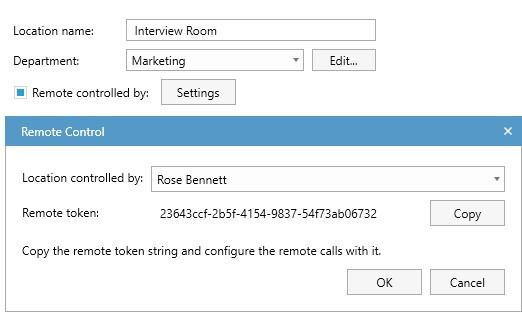
2. Select **Remote controlled by **and click the **Settings** button. A window will open with a remote token. You need this token when editing the batch file (see step 3 in [Edit the batch file](https://bookstack.noldus.com/ookstack.noldus.com/link/760#bkmrk-edit-the-batch-file)). Click **OK**. Save the token in a text file in, for instance, Notepad, and press the Copy button to copy the token for use in The Observer XT PC.
3. Select who can control the location. The drop-down list shows all users and groups of all departments and also the users that have not been assigned to a department. Select the user who will carry out the test with the test participants and click **OK**.
[](https://bookstack.noldus.com/uploads/images/gallery/2024-03/POSb4q23Ofw7NeUd-remote-control-token.jpg)
4. Repeat steps 1-3 to control more than one location.
5. Log out of Viso and ask the user who is going to run the test to log in.
**NOTE** You can also control Viso with a programmable button.
## Edit the batch file
To start and stop recording in Viso from The Observer XT you need two scripts which you can download using your MyNoldus account. You can find the scripts in the **Drivers and Tools** > **Scripts** folder, both under Viso and The Observer XT):
- RunPostCommand.bat and
- startstoprecording.ps1
Browse to my.noldus.com if you do not have a MyNoldus account yet.
### procedure - 1-PC set-up
Follow the steps below if Viso and The Observer XT run on the same PC.
1. Copy the scripts to the Viso/Observer XT PC.
2. Open the batch file (RunPostCommand.bat) in Notepad or a similar text editor.
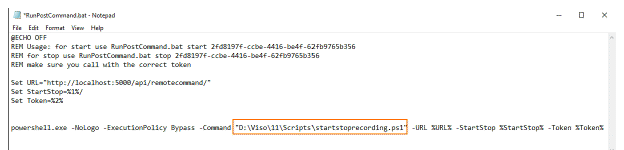
3. Specify the location of the ps script.
[](https://bookstack.noldus.com/uploads/images/gallery/2023-12/Ba0hqGyseLlV6G4Y-image.png)
4. Save the batch file.
### procedure - 2-PC set-up
Follow the steps below if Viso and The Observer XT run on separate PCs.
1. Copy the scripts to the Observer XT PC.
2. Open the batch file (RunPostCommand.bat) in Notepad or a similar text editor.
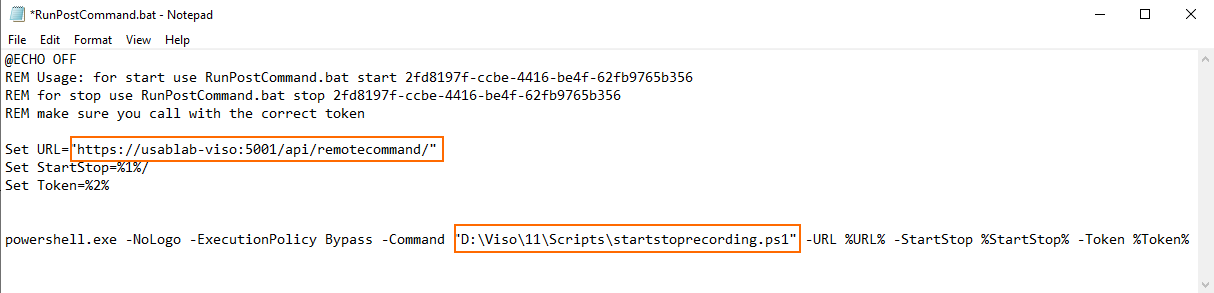
3. In the first Set line of the batch file
\- Change ‘http’ into ‘https’.
\- Replace ‘localhost’ with the computer name of the Viso PC.
\- Replace port number ‘5000’ in the third line of the batch file with ‘5001’.
**To find the Viso Services computer name
**Click the Windows icon and type system. Click System Information. You will find the name under System Name.
4. In the last line of the batch file specify the location of the ps script.
[](https://bookstack.noldus.com/uploads/images/gallery/2023-12/02d6S41VhQJwaXly-image.png)
5. Save the batch file.
## Set up The Observer XT for live observation
### procedure
1. Open The Observer XT and create a new project.
2. Choose **Setup >Project Setup** and select **Live Observation**. The **Devices** window opens. If not, click the Devices button.
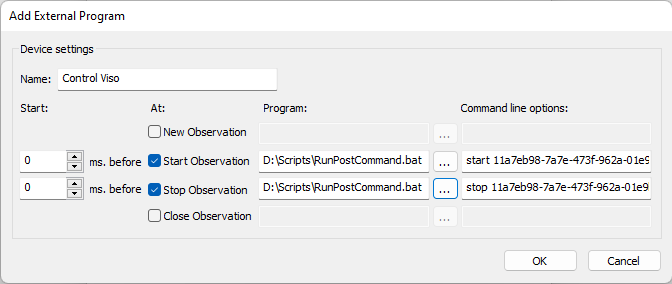
3. Click **Add external program**. The **Add External Program** window opens.
[](https://bookstack.noldus.com/uploads/images/gallery/2023-12/5w4x6Tx428XrNDgS-image.png)
4. In the **Name** field, enter ‘Control Viso’ or a similar name to indicate that these are the settings to control Viso.
**TIP**: Add the Viso location name when controlling multiple locations from The Observer XT.
5. Select the checkbox next to **Start Observation**.
6. In the same row, click the ellipsis button next to the **Program **field and browse to the batch file (RunPostCommand.bat).
7. Select the file and click **Open**.
8. In the **Command line options** field enter ‘start <token generated in Viso for the location>’. This instructs Viso to start recording when you start an observation.
9. Select the checkbox next to **Stop Observation**.
10. In the same row, click the ellipsis button next to the **Program** field and browse to the batch file (RunPostCommand.bat).
11. Select the file and click **Open**.
12. In the **Command line options** field enter ‘stop <token generated in Viso for the location>’. This instructs Viso to stop recording when you stop an observation.
13. Leave the **ms. before** fields of the lines **Start Observation** and **Stop Observation** empty.
14. Click **OK**. The **Devices** list now shows a new device with the name you gave in step 4. Select the checkbox in front of it.
15. Repeat steps 3-14 if you want to control more than one location.
## Run a test
### procedure
1. Invite the participants to enter the test room and check that the cameras are well positioned.
2. Create a new observation in The Observer XT.
3. Start the observation in The Observer XT. Depending on the settings, the Independent Variable List appears.
4. Enter the values of the independent variables and click **OK**.
5. Video recording in Viso starts. Please note that video recording does not start immediately, there is a delay.
6. Optionally - Manually annotate events in The Observer XT or in Viso. For more information about manually annotating in Viso see Chapter 6 of this Reference ([Annotations).](https://bookstack.noldus.com/link/743#bkmrk-page-title) To be able to annotate events in Viso you will need the[ Annotation module.](https://bookstack.noldus.com/link/743#bkmrk-page-title)
7. Stop the observation in The Observer XT. Video recording in Viso stops.
8. In Viso enter a name for your session. If you specified a default session name, the session automatically gets a name.
## notes
- Video recording in Viso does not start immediately when Viso gets the command from The Observer XT. There is a delay. If the delay is less than 10 seconds The Observer XT takes it into account when you import the video. It automatically gives the video an offset relative to the start of the event log. If the delay is more than 10 seconds The Observer XT gives a warning informing you that the delay is, for instance, 10.66 seconds. You need to manually enter this offset in The Observer XT.
- The videos that you record in Viso are not automatically imported in The Observer XT. Please see The Observer XT Help for the procedure (File Management > Import Media Files).
- You can also [Import Viso sessions into The Observer XT](https://bookstack.noldus.com/link/761#bkmrk-page-title).
# Import Viso sessions into The Observer XT
#
The videos created by Viso can be opened in the manual annotation program The Observer XT and, optionally, the annotations can be imported into an observation. All codes from the selected Codes list are imported into The Observer XT, independent of whether they were scored or not. Viso subjects are added to the coding scheme as subjects. Markers are added to the coding scheme as point events. Remarks are imported into The Observer XT as comments in the event log. You can create extra codes in The Observer XT and annotate sessions for further analysis.
There are two ways to import Viso sessions into The Observer XT:
- [Import sessions directly](https://bookstack.noldus.com/link/762#bkmrk-page-title). This requires communication between The Observer XT computer and the Viso Services computer.
This option is only available with The Observer XT 13 and higher. If you have an earlier version of The Observer XT, [Export sessions in Viso and import them in The Observer XT](https://bookstack.noldus.com/link/763#bkmrk-page-title)
- [Export sessions in Viso and import them in The Observer XT](https://bookstack.noldus.com/link/763#bkmrk-page-title). Use this method if:
\- The computer with The Observer XT is not in the same network as the computers with Viso Services and Viso Recorder.
\- You have The Observer XT 12.5 or an older version.
# Import sessions directly
### aim
To import Viso sessions in The Observer XT. This makes use of the Noldus network communication protocol N-Linx.
### prerequisites
- You have a license for The Observer XT 13 or a newer version.
- The computers with Viso and The Observer XT are in the same network and set up for communication with N-Linx. The procedure to set this up is present in the Viso Setup Manual.
- You recorded the sessions (Trainer), received session ownership or annotator rights or invitations to view the sessions or your user role is Administrator or Technician.
### procedure
1. In The Observer XT, choose **File > Preferences**.
2. Open the tab **Viso settings.**[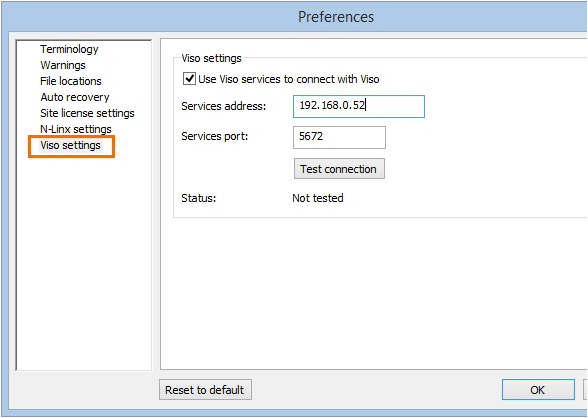](https://bookstack.noldus.com/uploads/images/gallery/2023-12/5ThagZRhrjb2birJ-image.png)
3. Select **Use Viso services to connect with Viso**.
4. In the **Services address** field, enter the computer name or IP address of the Viso Services computer. Ask your colleague who manages the Viso set-up for the details.
5. In the **Services port** field, leave the default port number 5672.
6. Click **Test connection**. If The Observer XT computer finds the Viso Services computer, the text **Connected** appears. Click **OK**.
7. Create a new project or open an existing one (**File> New/Open Project**).
8. Choose **File > Import > Viso Sessions**.
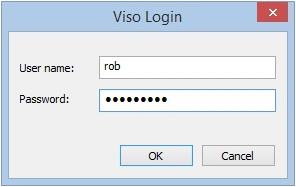
9. Enter your Viso login details.
**NOTE** If you are logged in in Viso, log out first. You can only import the sessions that you are allowed to view.
[](https://bookstack.noldus.com/uploads/images/gallery/2023-12/XuPXUX5gHuv8yhXU-image.png)
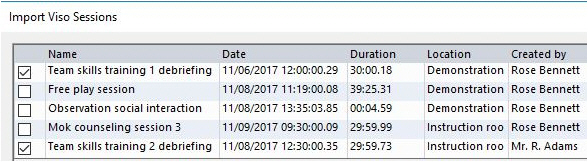
10. Select the sessions and click **Import**.
[](https://bookstack.noldus.com/uploads/images/gallery/2023-12/gsnxGLUBTEbos4XX-image.png)
**NOTE** Each session is imported as a separate observation. The videos are copied to the Video Files folder of The Observer XT. Markers are added to the coding scheme and remarks appear as comments in the Event log (see also [How Viso annotations appear in The Observer XT](https://bookstack.noldus.com/link/764#bkmrk-page-title)). The observation is named after the imported session, with the location name and the date and time the session was created added to the filename.
**NOTE** If you have a license for The Observer XT 12.5 or earlier, you cannot import sessions directly into Viso. You must [Export sessions in Viso and import them in The Observer XT.](https://bookstack.noldus.com/link/763#bkmrk-page-title)
# Export sessions in Viso and import them in The Observer XT
### aim
To import Viso sessions in The Observer XT if the computers with Viso and The Observer XT are not in the same network, or you have an older version of The Observer XT (see [Prerequisites](https://bookstack.noldus.com/link/762#bkmrk-prerequisites) to [Import sessions directly](https://bookstack.noldus.com/link/762#bkmrk-page-title)).
### prerequisites
- You have a license for The Observer XT.
- You recorded the sessions (Trainer), received session ownership or invitations to view the sessions or your user role is Administrator or Technician.
### procedure
### In Viso:
1. Open the **Sessions** tab.
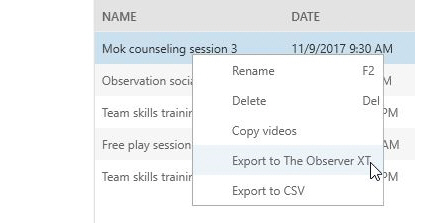
2. Right-click a session and select **Export to The Observer XT**.
[](https://bookstack.noldus.com/uploads/images/gallery/2023-12/FSj93w5j9LtpUn4p-image.png)
3. Specify the destination folder that can be accessed by The Observer XT, for example its **Video Files **folder.
4. 4.Select if you want to export the separate videos, or combine all videos into one picture-by-picture video per location.
5. Click **Export**.
[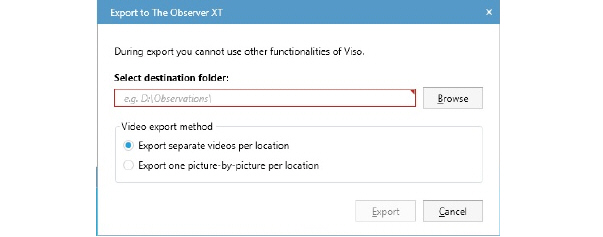](https://bookstack.noldus.com/uploads/images/gallery/2023-12/rU3Qd3qGFm8nMauL-image.png)
You will find the exported videos and the .odx file containing scored markers and comments in the destination folder.
### In The Observer XT:
6. Create a new project or open an existing one (**File> New/Open Project**).
7. Import the .odx file as a new observation. Choose **File > Import > Observational data**.
[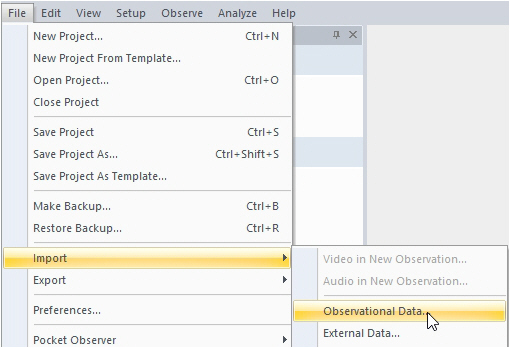](https://bookstack.noldus.com/uploads/images/gallery/2023-12/R8tJPaOcK4Qqg0dX-image.png)
8. Select the .odx file and click **Open**.
9. In the **Import Observational Data** window that appears, select **Yes, import new coding scheme elements**.
10. A message appears whether import is successful. Click **Close**.
## Notes
- Session export to The Observer XT, copies the videos and exports the session as an \*.odx file to the specified location.
- If you cannot export the sessions to a location that can be accessed by The Observer XT, you need to copy the files to a location that can. Make sure you copy both the .odx file and the videos to the same location. Do not import the .odx file from, for example, a USB stick, because The Observer XT then will not have access to the videos once the USB stick is removed.
- The videos are automatically linked to the imported observation.
- Subjects and Markers are added to the coding scheme and remarks appear as comments in the Event log.
See also [How Viso annotations appear in The Observer XT](https://bookstack.noldus.com/link/764#bkmrk-page-title)
- The observation is named after the imported session, with the location name and the date time the session was created added to the filename.
- It is also possible to import Viso sessions into an existing observation. For example if you already carried out an observation with the Viso videos. To do so, open the observation and click the **Import data** button on the toolbar.
[](https://bookstack.noldus.com/uploads/images/gallery/2023-12/n7C3bHTW6Y7tR6En-image.png)
Choose **Import observational data**, select the .odx file and click **Open**.
# How Viso annotations appear in The Observer XT
## In the Coding Scheme
In The Observer XT, choose **Setup > Open Coding Scheme**, to open the Coding Scheme. Viso subjects appear in the **Subjects** panel. Viso markers are added as Point events in a Start-Stop group. Remarks are not added to the Coding Scheme.
[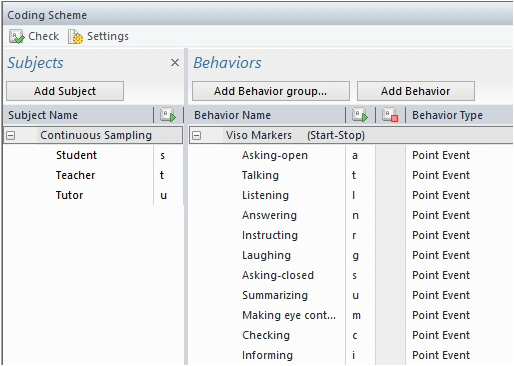](https://bookstack.noldus.com/uploads/images/gallery/2023-12/6jiZrcVYGk7Zdqk5-image.png)
## In the observation
Choose **Observe > Observation > Open > \[session name and time\]** to view the annotations in the Event Log. Viso Subjects are also Subjects in The Observer XT. Markers are point events and are indicated with blue dots. Remarks are imported as comments in the Event Log.
[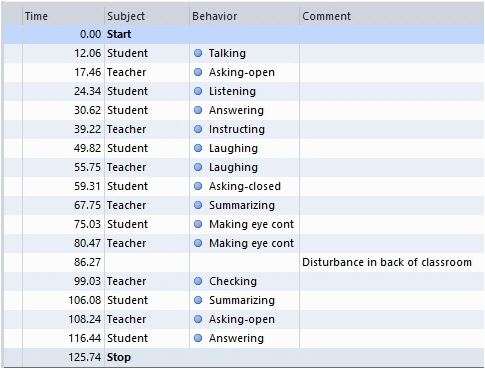](https://bookstack.noldus.com/uploads/images/gallery/2023-12/immGIRcw7KOPy58u-image.png)
To jump to the video frame at which a certain marker or remark was scored, click its row in the Event Log.
# Further analysis with The Observer XT
In The Observer XT you can further analyze your sessions. For example:
- Carry out a Behavior analysis to obtain quantitative data about your session, like the frequency or the latency of a scored marker. See **Calculate Statistics** in The Observer XT Help.
- Add new elements to the Coding Scheme and annotate the Viso videos. See **Set up your Project** and **Carry out an Observation** in The Observer XT Help.
- Select time fragments based on behaviors in the Coding Scheme for further analysis. See **Select Data for Analysis** in The Observer XT Help.