# Schedule Session Recording
# Schedule a session
### aim
To schedule session recording in advance.
### prerequisites
- Your Viso license includes the Scheduler Module.
- Your user role allows session recording (Technician, Administrator, or Trainer).
### procedure
1. Open the **Scheduler** tab.
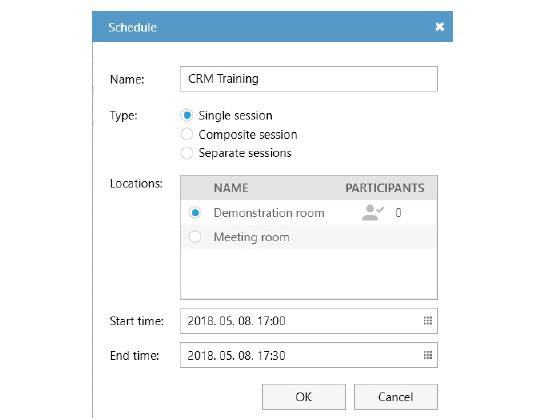
2. Double-click a time slot or press the **New schedule** button.
3. Enter a Session name in the **Name** field if you did not [Specify a default session name](https://bookstack.noldus.com/link/725#bkmrk-page-title).
4. Select for single, composite or separate sessions.
5. Select the Location from the list.
If composite session or separate session recording is selected, you can select multiple locations.
See [Select multiple locations to record a composite session](https://bookstack.noldus.com/link/738#bkmrk-page-title)
6. Optionally, select other users or groups of users from the **Participants** list to invite them to the session.
See[ Invite participants](https://bookstack.noldus.com/link/727#bkmrk-page-title)
7. Optionally, edit the Start time, or End time.
[](https://bookstack.noldus.com/uploads/images/gallery/2023-12/vE7CiMJbh89vKCT4-image.png)
1. Click **OK**. The scheduled session now appears in the Dashboard of the user that created it and the ones that are invited.
See also [The Scheduler in detail](https://bookstack.noldus.com/link/758#bkmrk-page-title)
## Notes
- The Composite and Separate sessions options are only available if the person with the Technician account enabled it in the Recording Methods.
- If you schedule consecutive sessions without gaps in between, recording of the second and third etc. session starts once the previous session was saved. This can result in a recording that is a few seconds shorter than scheduled. It is always recommended to leave a few minutes between recordings.
- Trainees are not able to view the Scheduler. Their Dashboard lists the sessions they are invited to.
- If a user is removed by e.g. the Administrator or the Technician and this person has been included in the list of participants of a scheduled session, the list will be updated automatically by the system.
# Manage scheduled sessions
### aim
To reschedule or remove a scheduled session.
### prerequisites
- Your Viso license includes the Scheduler Module.
- You created the scheduled session, or your user role is Technician, or Administrator.
## Modify a session
1. Open the **Scheduler** tab.
2. Double-click the scheduled session.
3. Edit the Schedule and click **OK**.
## Delete a session
1. Open the **Scheduler** tab.
2. Select the schedule and press the **Delete** key on your keyboard or the X icon.
**NOTE** You can only delete a scheduled session in the Scheduler. Not a session that has been recorded. To delete a recorded session, see [Manage sessions](https://bookstack.noldus.com/link/742#bkmrk-page-title).
# The Scheduler in detail
What do you want to do?
- [Select the current day in the calendar](https://bookstack.noldus.com/link/758#bkmrk-select-the-current-d-1)
- [Select locations to display in the calendar](https://bookstack.noldus.com/link/758#bkmrk-select-locations-to-)
- [Select the time period to display in the calendar](https://bookstack.noldus.com/link/758#bkmrk-select-the-time-peri)
- [Change the date and time format](https://bookstack.noldus.com/link/758#bkmrk-change-the-date-and-)
- Read about [Scheduled and recorded sessions in the Scheduler](https://bookstack.noldus.com/link/758#bkmrk-scheduled-and-record)
- Read about [Scheduled and recorded sessions in the Dashboard](https://bookstack.noldus.com/link/758#bkmrk-scheduled-and-record-1)
- Read about [Priority of scheduled and manual sessions](https://bookstack.noldus.com/link/758#bkmrk-priority-of-schedule)
## Select the current day in the calendar
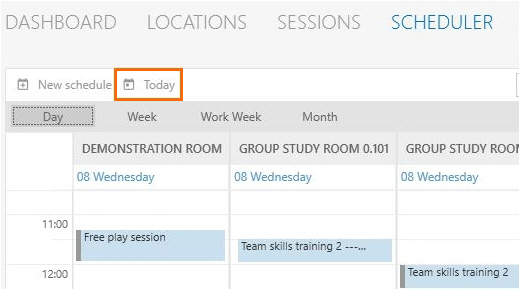
If you selected another day in the calendar, click the **Today** button to select the current day.
[](https://bookstack.noldus.com/uploads/images/gallery/2023-12/qb1ozchudxDWvKi9-image.png)
## Select locations to display in the calendar
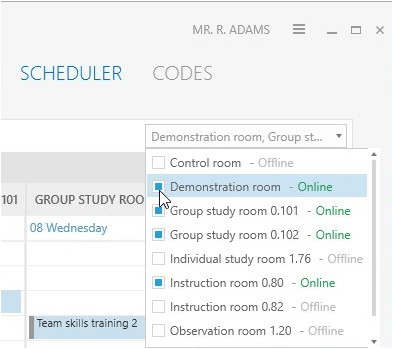
Open the Locations list in the top-right corner of your window. Select the locations to display. Locations that appear offline are either having connectivity issues or simply are not selected for recording by your colleague who manages the Viso set-up. If all locations appear offline, then the Viso Recorder Manager may not be running or is disconnected.
[](https://bookstack.noldus.com/uploads/images/gallery/2023-12/Jkc2ZM3qL4GTuS81-image.png)
## Select the time period to display in the calendar
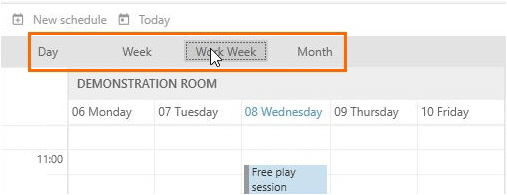
Click the Day, Week, Work Week or Month button on the toolbar. By default the current day is displayed. The work week is the week from Monday till Friday. Your colleague who manages the Viso set-up can change the default work week and working hours.
[](https://bookstack.noldus.com/uploads/images/gallery/2023-12/3reOHTPFCiJr50mp-image.png)
## Change the date and time format
Change the date time format of the scheduler in the computer’s regional settings.
[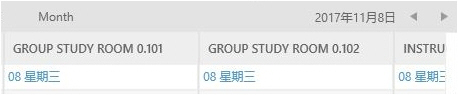](https://bookstack.noldus.com/uploads/images/gallery/2023-12/3lrRbGfDC1JoBnVC-image.png)
Procedure:
1. Type **Date** in the Apps window and choose **Date & time settings**.
2. Click **Additional data, time & regional settings** in the upper-right corner of the window.
3. Under **Region**, choose **Change data, time, or number formats**.
4. Select a region from the **Format** list and click **OK**.
5. Restart Viso.
**NOTE** The time format is also used in the calendar of the Dashboard.
[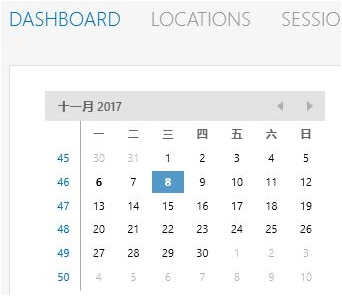](https://bookstack.noldus.com/uploads/images/gallery/2023-12/nKfROAie1oQ3z2Ff-image.png)
## Scheduled and recorded sessions in the Scheduler
The scheduler can be viewed by anyone in the Viso network with the proper rights. However the details shown depend on the user role.
### Administrators and Technicians
Administrators and Technicians are able to view all the details of each session.
### Trainers
Trainers can open, edit and see all the details of their own sessions. They cannot open or edit a scheduled session they are invited to. For the sessions they are invited to, they can see the session name and the person who created it by hovering over the schedule.
[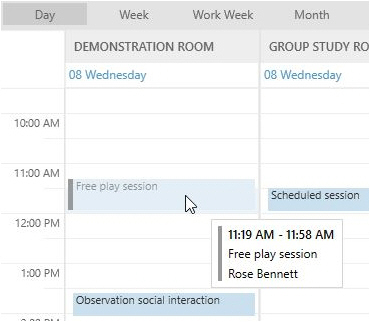](https://bookstack.noldus.com/uploads/images/gallery/2023-12/Dzd16FhDLfJD6J8q-image.png)
For the sessions they are not invited to, only the name of the person who created it is shown. The title of the session is hidden, only the status is indicated (Scheduled Session, Recording Session...).
[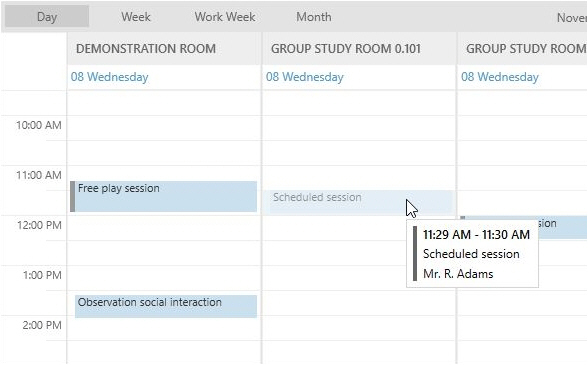](https://bookstack.noldus.com/uploads/images/gallery/2023-12/GXUM0DCqUBgkDeo9-image.png)
### Trainees
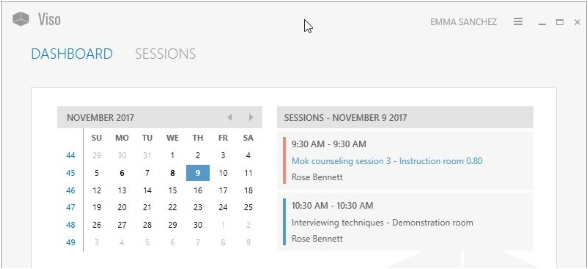
Trainees do not have a **Scheduler** tab. The sessions they are invited to are listed, with the session name and the person that created the session, in their Dashboard.
[](https://bookstack.noldus.com/uploads/images/gallery/2023-12/wYfoHwi7s9tmyh5V-image.png)
## Scheduled and recorded sessions in the Dashboard
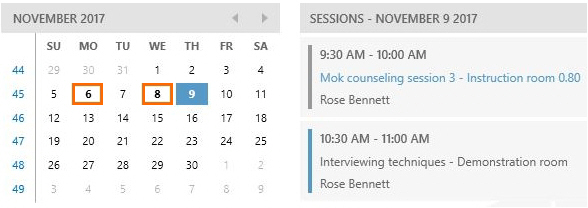
When you have the Scheduler Module, the Dashboard contains a calendar and a Session list. Days on which sessions are scheduled or have been recorded are shown in bold in the calendar.
[](https://bookstack.noldus.com/uploads/images/gallery/2023-12/HceLOl1VvRL5hGoD-image.png)
The Session list displays the following for the day you select in the calendar:
- Sessions you scheduled yourself.
- Sessions that you are currently recording, with a link to open them.
- Sessions that you have recorded, with a link to open them.
- Sessions that you received ownership of or annotator rights for, with a link to open them and the name of the person who owns the sessions.
- Scheduled sessions that you are invited to.
- Sessions that are currently recorded and you are invited to, with a link to open them.
- Sessions that have been recorded and you are invited to, with a link to open them.
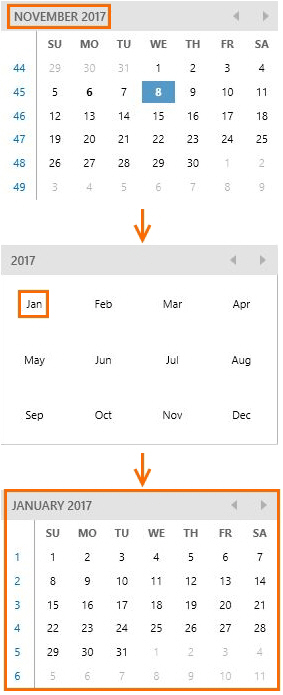
**TIP** Click the month in the upper-left corner of the calendar to zoom out in time. Click several times to zoom out more. Then click the time slot in the calendar to zoom in. This way you can quickly access sessions that were, for example, recorded a few months or even years ago.
[](https://bookstack.noldus.com/uploads/images/gallery/2023-12/EfQmDFCMVg0gt3qz-image.png)
## Priority of scheduled and manual sessions
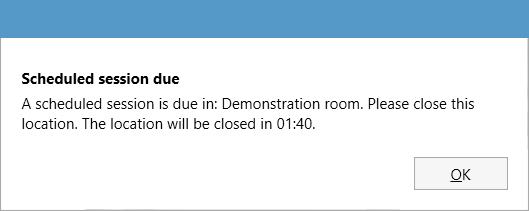
A scheduled session always has priority over a session that you start manually by opening a location and pressing the **Start recording** button. This means that you cannot open a location when it is in use in a scheduled session recording. Also, a manual session recording will be terminated when a scheduled session with the same location is about to start. You will receive a warning about this. Likewise, if a location is open for viewing, it will be closed when a scheduled session is about to start. You will receive a warning about this.
[](https://bookstack.noldus.com/uploads/images/gallery/2023-12/KQXGph8K9Ap17JV9-image.png)
Using a programmable button or The Observer XT to start recording in Viso is similar to starting a recording by hand. A scheduled recording has priority.
### Scheduled sessions and manual recordings in multiple locations
If a scheduled session is about to start with a location that is in use in a multiple location recording, the following happens:
- Single session recording – Recording stops in the locations that are selected in the scheduled session. Recording continues in the locations that are not selected in the scheduled session. The scheduled session starts.
- Composite session recording – Recording in all locations stops and the scheduled session starts.
- Separate session recording - Recording is stopped only in those locations which are used for the scheduled session.
See also the following topics:
[Select multiple locations to record separate sessions for each location](https://bookstack.noldus.com/link/737#bkmrk-page-title)
[Select multiple locations to record a composite session](https://bookstack.noldus.com/link/738#bkmrk-page-title)