# Anmerkungsmodul

Mit dem Anmerkungsmodul ist es möglich, Ereignisse in Ihren Sitzungen zu markieren. Neben der Funktionalität des[<span style="color: #0000cc; text-decoration: none; text-underline: none;"><span style="mso-spacerun: yes;"> </span></span>](https://bookstack.noldus.com/link/354#bkmrk-page-title)[<span style="color: #0000cc; text-decoration: none; text-underline: none;">Basismoduls</span>](https://bookstack.noldus.com/books/viso-12-quick-start-guide-german/page/viso-basismodul "Basismoduls") verfügt das Anmerkungsmodul über die folgenden zusätzlichen Optionen:

- [<span style="font-family: 'Calibri',sans-serif; mso-fareast-font-family: Calibri; color: #0000cc; text-decoration: none; text-underline: none;">Erstellen von Codelisten.</span>](https://bookstack.noldus.com/books/viso-12-quick-start-guide-german/page/anmerkungsmodul/edit?content-id=bkmrk-erstellen-von-codeli&content-text=Erstellen%20von%20Codelisten)
- [<span style="font-family: 'Calibri',sans-serif; mso-fareast-font-family: Calibri; color: #0000cc; text-decoration: none; text-underline: none;">Kommentieren.</span>](https://bookstack.noldus.com/books/viso-12-quick-start-guide-german/page/anmerkungsmodul/edit?content-id=bkmrk-kommentieren)
- [<span style="font-family: 'Calibri',sans-serif; mso-fareast-font-family: Calibri; color: #0000cc; text-decoration: none; text-underline: none;">Geben Sie eine Bemerkung (Remark) ein.</span>](https://bookstack.noldus.com/books/viso-12-quick-start-guide-german/page/anmerkungsmodul/edit?content-id=bkmrk-geben-sie-eine-bemer)
- [<span style="font-family: 'Calibri',sans-serif; mso-fareast-font-family: Calibri; color: #0000cc; text-decoration: none; text-underline: none;">Erstellen Sie Highlight-Videos.</span>](https://bookstack.noldus.com/books/viso-12-quick-start-guide-german/page/anmerkungsmodul/edit?content-id=bkmrk-erstellen-sie-highli)

## Erstellen von Codelisten

Verwenden Sie subjects und Marker, um Ihre Sitzung mit Anmerkungen zu versehen. Subjekte sind die Rollen der untersuchten Personen. Marker markieren den Beginn einer Episode, zum Beispiel den Beginn eines Tests, oder den Moment, in dem Ihr Testteilnehmer in einem Usability-Test einen Fehler macht. Definieren Sie Themen nur, wenn Sie mehrere Personen beobachten und ihr individuelles Verhalten kommentieren möchten.

Themen und Markierungen sind in Codelisten organisiert. Eine Codeliste kann maximal 36 subjects und 36 Marker enthalten. So erstellen Sie eine Codeliste:

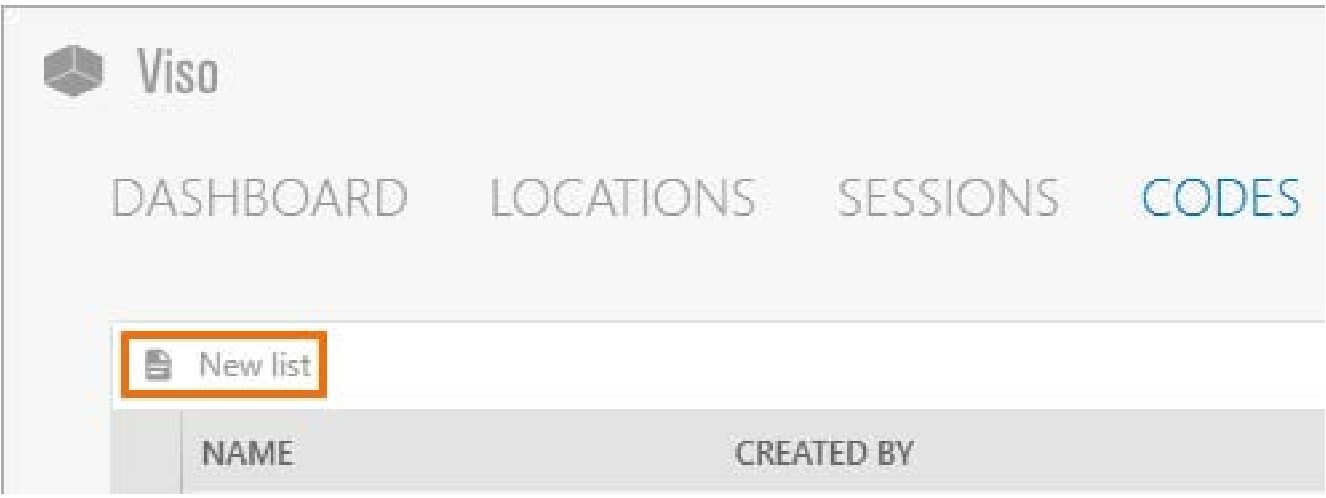
1. <span style="font-family: 'Calibri',sans-serif; mso-fareast-font-family: Calibri;">Öffnen Sie die Registerkarte **Codes** und klicken Sie auf **New List**.</span>

<span style="mso-no-proof: yes;">![New marker list.jpg](https://bookstack.noldus.com/uploads/images/gallery/2024-07/jpWkmcf4DkPlY8I3-new-marker-list.jpg)</span>

<span style="mso-bidi-font-size: 10.5pt; line-height: 109%; font-family: 'Calibri',sans-serif; mso-fareast-font-family: Calibri;"><span style="mso-list: Ignore;">2.<span style="font: 7.0pt 'Times New Roman';"> </span></span></span>[<span style="color: #444444; text-decoration: none; text-underline: none;">Geben Sie der Liste einen Namen und optional eine Beschreibung.</span>](https://bookstack.noldus.com/uploads/images/gallery/2023-11/ZU3dpSu11SSLwrMW-image.png)

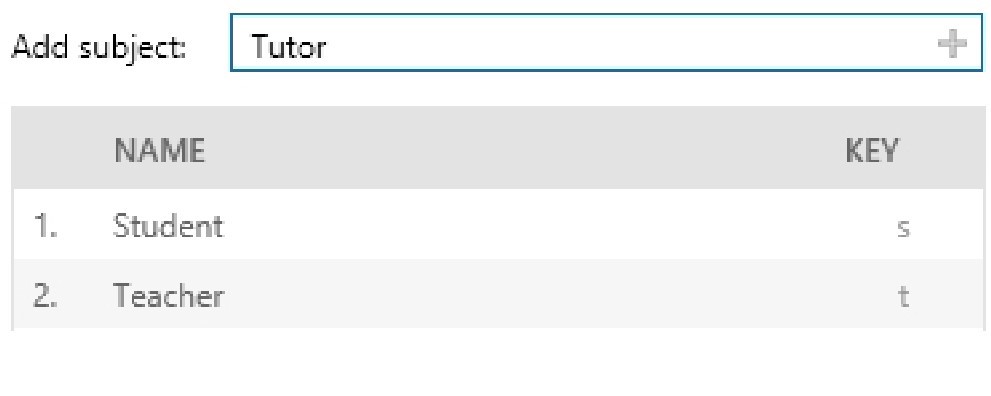
<span style="mso-bidi-font-size: 10.5pt; line-height: 109%; font-family: 'Calibri',sans-serif; mso-fareast-font-family: Calibri;"><span style="mso-list: Ignore;">3.<span style="font: 7.0pt 'Times New Roman';"> </span></span></span>Definieren Sie optional die Subjects.

<span style="mso-no-proof: yes;">![Enter marker list name.jpg](https://bookstack.noldus.com/uploads/images/gallery/2024-07/f9HvMsAYlYxgg5qs-enter-marker-list-name.jpg)</span>

<span style="mso-bidi-font-size: 10.5pt; line-height: 109%; font-family: 'Calibri',sans-serif; mso-fareast-font-family: Calibri;"><span style="mso-list: Ignore;">4.<span style="font: 7.0pt 'Times New Roman';"> </span></span></span>[<span style="color: #444444; text-decoration: none; text-underline: none;">Definieren Sie die Marker.</span>](https://bookstack.noldus.com/uploads/images/gallery/2023-11/COXQ42eqWXhIv5Ab-image.png)
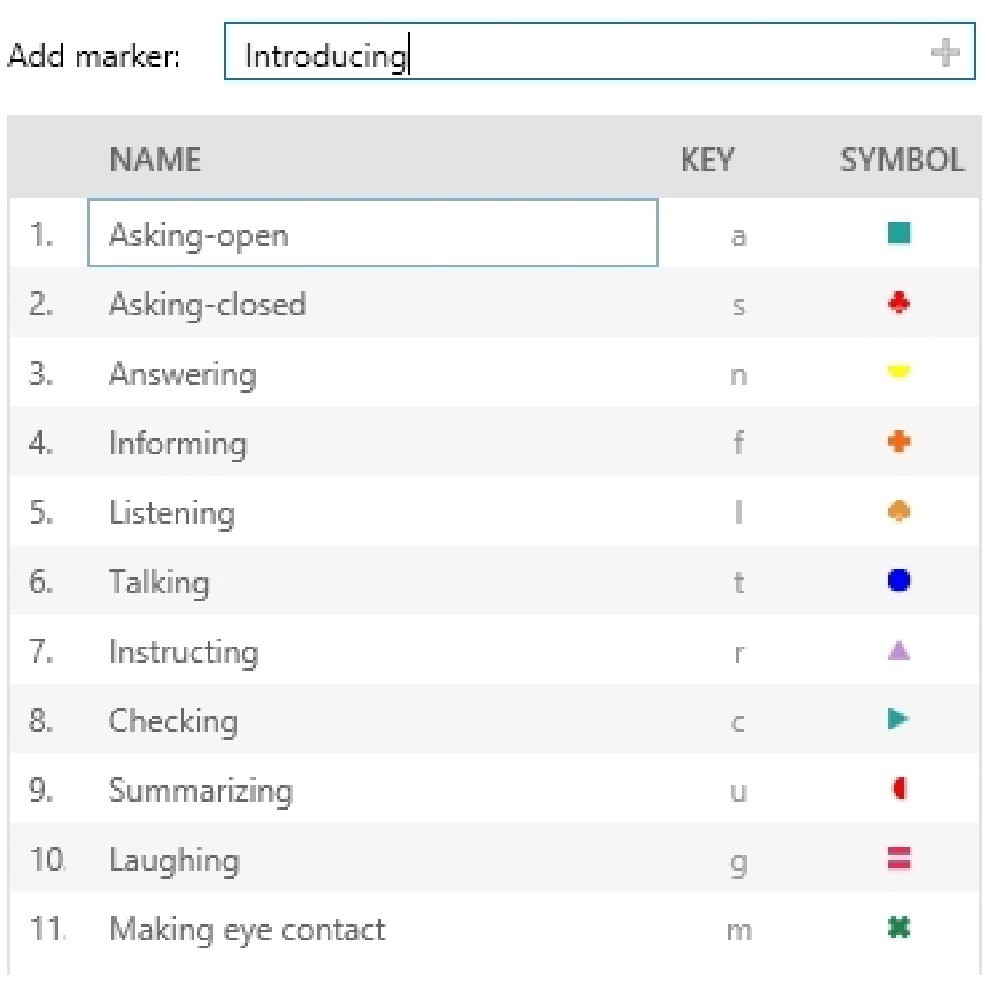
<span style="mso-no-proof: yes;">![Define markers.jpg](https://bookstack.noldus.com/uploads/images/gallery/2024-07/ybyxnWJfMxMIbVe2-define-markers.jpg)</span>

**HINWEIS** Neue Marker erhalten automatisch einen Tastencode, eine Form und eine Farbe. Innerhalb einer Liste kann ein Schlüsselcode nur einmal verwendet werden. Der Schlüsselcode ist standardmäßig der erste Buchstabe des Markierungsnamens, der noch nicht für andere Markierungen in derselben Liste verwendet wurde.

Sie können den Tastencode, die Form und die Farbe manuell ändern.

## Kommentieren

<span style="mso-bidi-font-size: 10.5pt; line-height: 110%; font-family: 'Calibri',sans-serif; mso-fareast-font-family: Calibri;"><span style="mso-list: Ignore;">1.<span style="font: 7.0pt 'Times New Roman';"> </span></span></span><span style="font-family: 'Calibri',sans-serif; mso-fareast-font-family: Calibri;">Um eine Sitzung zu erstellen, doppelklicken Sie auf einen Speicherort.</span>

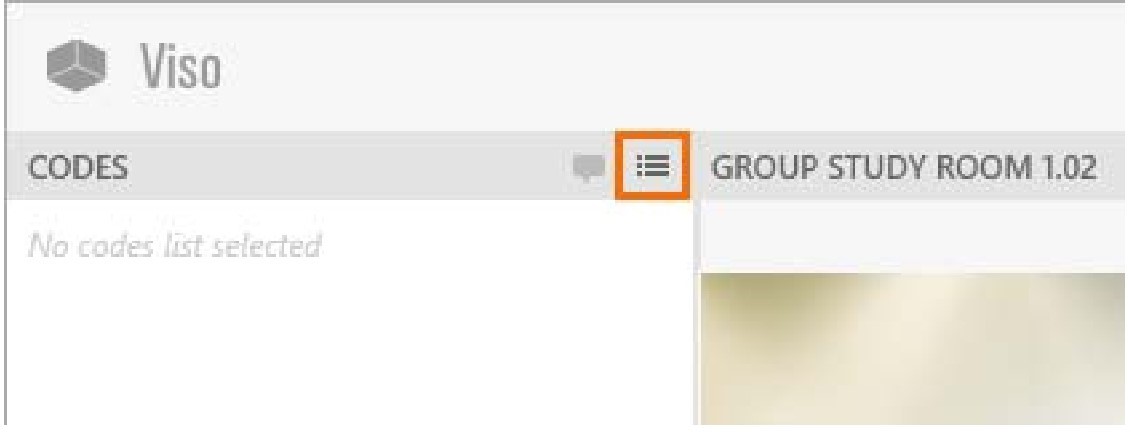
<span style="mso-bidi-font-size: 10.5pt; line-height: 110%; font-family: 'Calibri',sans-serif; mso-fareast-font-family: Calibri;"><span style="mso-list: Ignore;">2.<span style="font: 7.0pt 'Times New Roman';"> </span></span></span><span style="font-family: 'Calibri',sans-serif; mso-fareast-font-family: Calibri;">Um eine Codeliste auszuwählen, klicken Sie auf die **<span style="mso-spacerun: yes;"> </span>**Schaltfläche **Select codes list** (Codeliste auswählen).</span>

<span style="mso-no-proof: yes;">![Select codes list.jpg](https://bookstack.noldus.com/uploads/images/gallery/2024-07/hTJdobiC7YG7m2TS-select-codes-list.jpg)</span>

<span style="mso-bidi-font-size: 10.5pt; line-height: 110%; font-family: 'Calibri',sans-serif; mso-fareast-font-family: Calibri;"><span style="mso-list: Ignore;">3.<span style="font: 7.0pt 'Times New Roman';"> </span></span></span>[<span style="font-family: 'Calibri',sans-serif; mso-fareast-font-family: Calibri; color: #444444; text-decoration: none; text-underline: none;">Um die Aufnahme zu starten, klicken Sie auf die rote Schaltfläche.</span>](https://bookstack.noldus.com/uploads/images/gallery/2023-11/d0twcVgwEVM21uBU-image.png)
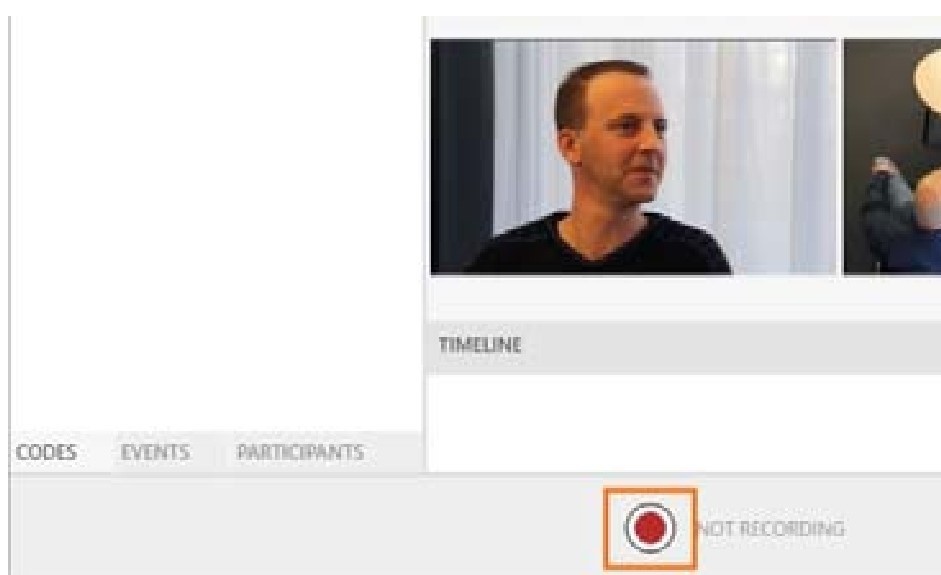
<span style="mso-no-proof: yes;">![Start recording.jpg](https://bookstack.noldus.com/uploads/images/gallery/2024-07/lzQOUBwc6my5DkbD-start-recording.jpg)</span>

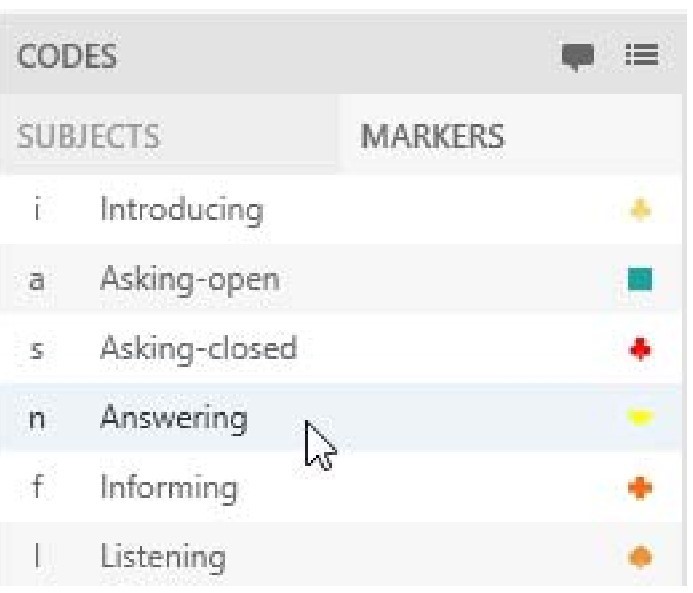
<span style="mso-bidi-font-size: 10.5pt; line-height: 110%; font-family: 'Calibri',sans-serif; mso-fareast-font-family: Calibri;"><span style="mso-list: Ignore;">4.<span style="font: 7.0pt 'Times New Roman';"> </span></span></span><span style="font-family: 'Calibri',sans-serif; mso-fareast-font-family: Calibri;">Um Ereignisse zu markieren, drücken Sie zuerst die Taste, die einem subject zugeordnet ist, und dann die Taste, die dem Marker zugeordnet ist. Alternativ können Sie im**<span style="mso-spacerun: yes;"> </span>**Fenster **Codes** auf den Betreff und die Markierung <span style="mso-spacerun: yes;"> </span>klicken. Es ist auch möglich, nur Marker zu werten. Öffnen Sie dazu den Reiter **Marker** im<span style="mso-spacerun: yes;"> </span>Fenster **Codes** und setzen Sie die Marker dort.</span>

<span style="mso-no-proof: yes;">![Score markers.jpg](https://bookstack.noldus.com/uploads/images/gallery/2024-07/JDaHvknSv7X6d3Hb-score-markers.jpg)</span>

[<span style="color: #444444; text-decoration: none; text-underline: none;">Die Ereignisse werden in der Zeitleiste unten</span>](https://bookstack.noldus.com/uploads/images/gallery/2023-11/Ngsfq5WcctjYAGB0-image.png) in Ihrem Fenster angezeigt. Marker, die ohne Subjects bewertet wurden, werden in der Zeile **No Subject** in der Timeline angezeigt.
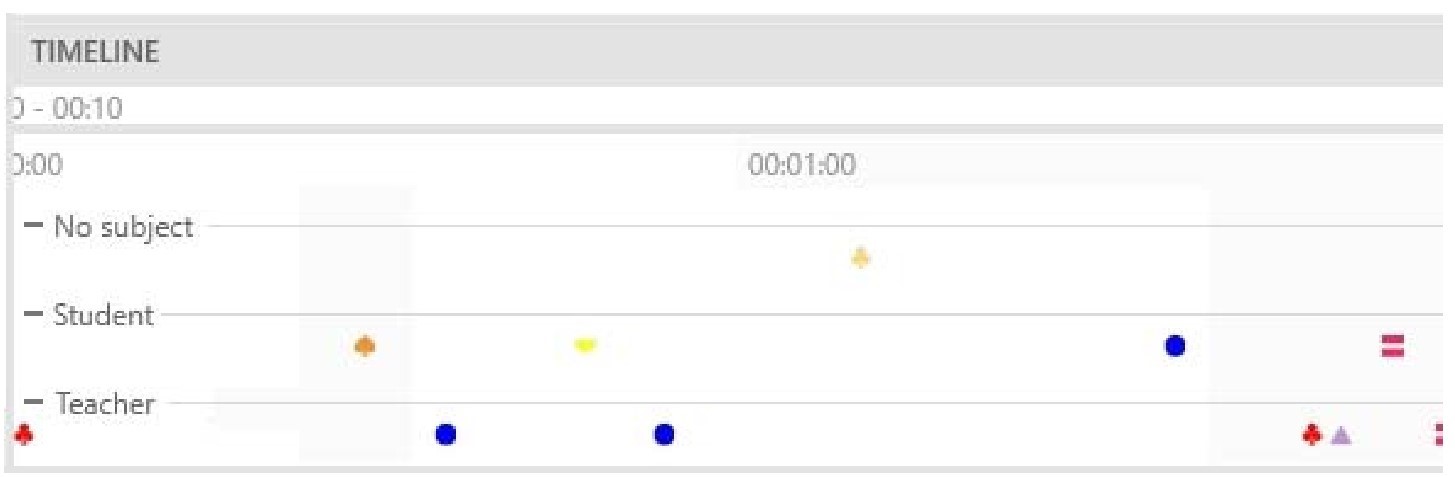
<span style="mso-no-proof: yes;">![Timeline with markers.jpg](https://bookstack.noldus.com/uploads/images/gallery/2024-07/o0cp4INhQnTpOypa-timeline-with-markers.jpg)</span>

Öffnen Sie die **<span style="mso-spacerun: yes;"> </span>**Registerkarte **Events**, um die Codes anzuzeigen oder zu bearbeiten.
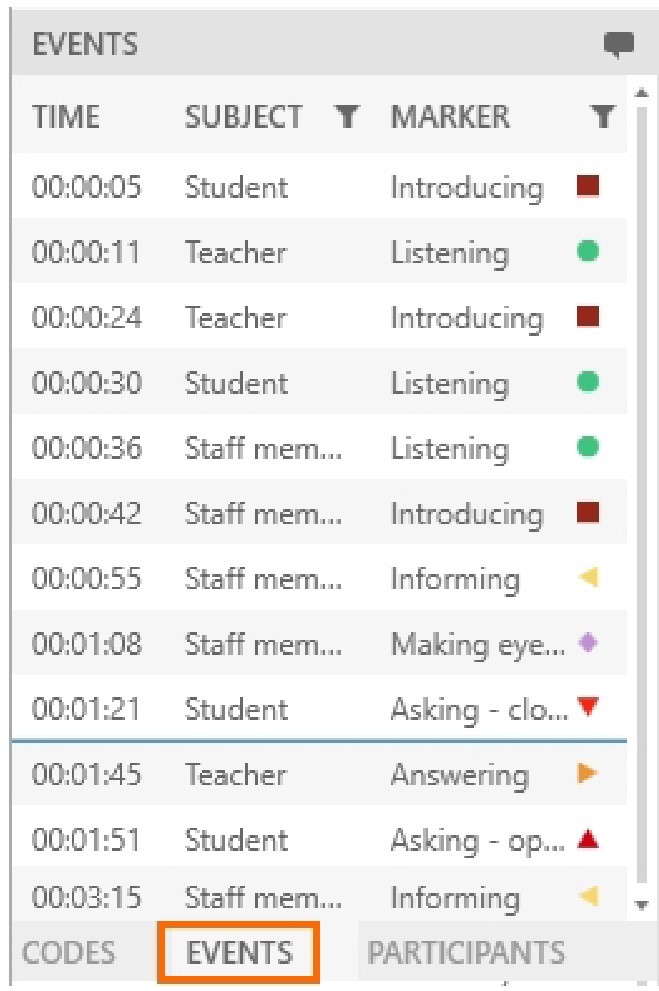
<span style="mso-no-proof: yes;">![Events tab.jpg](https://bookstack.noldus.com/uploads/images/gallery/2024-07/ciYYWyLgd0SwvSxH-events-tab.jpg)</span>


### Notizen

<span style="font-family: 'Calibri',sans-serif; mso-fareast-font-family: Calibri;">Um eine andere Codeliste auszuwählen, öffnen Sie die Registerkarte **Codes** und klicken Sie auf die<span style="mso-spacerun: yes;"> </span>Schaltfläche **Select Codes list (Codeliste auswählen). Wählen Sie die richtige Liste aus. Dies ist nur möglich, wenn Sie in dieser Sitzung noch keine Ereignisse gewertet haben.</span>

![Annotation Module select codes list smaller section.jpg](https://bookstack.noldus.com/uploads/images/gallery/2024-07/ZxeIQUQ7txrsXFN6-annotation-module-select-codes-list-smaller-section.jpg)

[<span style="font-family: 'Calibri',sans-serif; mso-fareast-font-family: Calibri; color: #444444; text-decoration: none; text-underline: none;">Es ist auch möglich, Probanden und Marker in einer aufgezeichneten Sitzung zu bewerten. Öffnen Sie dazu die </span>](https://bookstack.noldus.com/uploads/images/gallery/2023-11/KnjqfZT8HFufomBz-image.png)<span style="font-family: 'Calibri',sans-serif; mso-fareast-font-family: Calibri;">Registerkarte </span>**<span style="font-family: 'Calibri',sans-serif; mso-fareast-font-family: Calibri;">Sessions </span>**<span style="font-family: 'Calibri',sans-serif; mso-fareast-font-family: Calibri;">und öffnen Sie die Sitzung. Öffnen Sie die Registerkarte **Codes** und klicken Sie auf die Schaltfläche **Select Codes list** (Codeliste auswählen), um die Codeliste auszuwählen. Spielen Sie die Sitzung ab und kommentieren Sie die Sitzung. Wenn Sie bereits während der Sitzungsaufzeichnung Anmerkungen gemacht haben, können Sie nur Ereignisse aus derselben Codeliste bewerten.</span>

- <span style="font-family: 'Calibri',sans-serif; mso-fareast-font-family: Calibri;">Sie können nicht ausschliesslich Subject bewerten.</span>
- <span style="font-family: 'Calibri',sans-serif; mso-fareast-font-family: Calibri;">Um zu einem Ereignis im Video zu springen, klicken Sie auf das bewertete Ereignis im Ereignisprotokoll.</span>
- <span style="font-family: 'Calibri',sans-serif; mso-fareast-font-family: Calibri;">Legen Sie ein Pre-Roll-Intervall fest, um einige Sekunden vor dem Event mit dem Spielen zu beginnen, wählen Sie **Menu** dann **Settings** und **Playback settings**.</span>
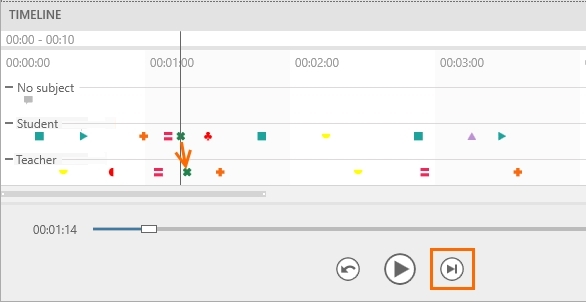
- <span style="font-family: 'Calibri',sans-serif; mso-fareast-font-family: Calibri;">Um zum nächsten Event zu springen, klicken Sie auf die Schaltfläche **Skip to next Event** oder drücken Strg + Pfeil nach rechts.</span>

![Skip to nex event button.jpg](https://bookstack.noldus.com/uploads/images/gallery/2024-07/b066ZqY5AMm8suIO-skip-to-nex-event-button.jpg)

- [<span style="font-family: 'Calibri',sans-serif; mso-fareast-font-family: Calibri; color: #444444; text-decoration: none; text-underline: none;"> Um bewertete Ereignisse zu filtern, klicken Sie </span>](https://bookstack.noldus.com/uploads/images/gallery/2023-11/ZTCqJ8vNVeZIx0rk-image.png)[<span style="font-family: 'Calibri',sans-serif; mso-fareast-font-family: Calibri; color: #444444; text-decoration: none; text-underline: none;">im<span style="mso-spacerun: yes;"> </span>Fenster</span>**<span style="font-family: 'Calibri',sans-serif; mso-fareast-font-family: Calibri; color: #444444; text-decoration: none; text-underline: none;"> Event log </span>**<span style="font-family: 'Calibri',sans-serif; mso-fareast-font-family: Calibri; color: #444444; text-decoration: none; text-underline: none;">(</span>](https://bookstack.noldus.com/uploads/images/gallery/2023-11/ZTCqJ8vNVeZIx0rk-image.png)[<span style="font-family: 'Calibri',sans-serif; mso-fareast-font-family: Calibri; color: #444444; text-decoration: none; text-underline: none;">Ereignisprotokoll)</span>](https://bookstack.noldus.com/uploads/images/gallery/2023-11/ZTCqJ8vNVeZIx0rk-image.png)[**<span style="font-family: 'Calibri',sans-serif; mso-fareast-font-family: Calibri; color: #444444; text-decoration: none; text-underline: none;"><span style="mso-spacerun: yes;"> </span></span>**<span style="font-family: 'Calibri',sans-serif; mso-fareast-font-family: Calibri; color: #444444; text-decoration: none; text-underline: none;">auf die Schaltfläche</span>**<span style="font-family: 'Calibri',sans-serif; mso-fareast-font-family: Calibri; color: #444444; text-decoration: none; text-underline: none;"> </span>**](https://bookstack.noldus.com/uploads/images/gallery/2023-11/ZTCqJ8vNVeZIx0rk-image.png)[<span style="font-family: 'Calibri',sans-serif; mso-fareast-font-family: Calibri; color: #444444; text-decoration: none; text-underline: none;">**Filter** </span>](https://bookstack.noldus.com/uploads/images/gallery/2023-11/ZTCqJ8vNVeZIx0rk-image.png)[<span style="font-family: 'Calibri',sans-serif; mso-fareast-font-family: Calibri; color: #444444; text-decoration: none; text-underline: none;">neben Subject oder </span>](https://bookstack.noldus.com/uploads/images/gallery/2023-11/ZTCqJ8vNVeZIx0rk-image.png)<span style="font-family: 'Calibri',sans-serif; mso-fareast-font-family: Calibri;">Marker</span><span style="font-family: 'Calibri',sans-serif; mso-fareast-font-family: Calibri;">. Geben Sie den Filter an. Der Filter wird auf das Ereignisprotokoll und die Zeitachse angewendet.</span>
- <span style="font-family: 'Calibri',sans-serif; mso-fareast-font-family: Calibri;"> Um die bewerteten Ereignisse zu speichern, drücken Sie **Strg + S**. Die bewerteten Ereignisse werden auch gespeichert, wenn Sie die Sitzung beenden.</span>

## Geben Sie eine Bemerkung (Remark) ein
<span style="mso-no-proof: yes;">![Score remark.jpg](https://bookstack.noldus.com/uploads/images/gallery/2024-07/kYhPdxEHkvZai60q-score-remark.jpg)</span>

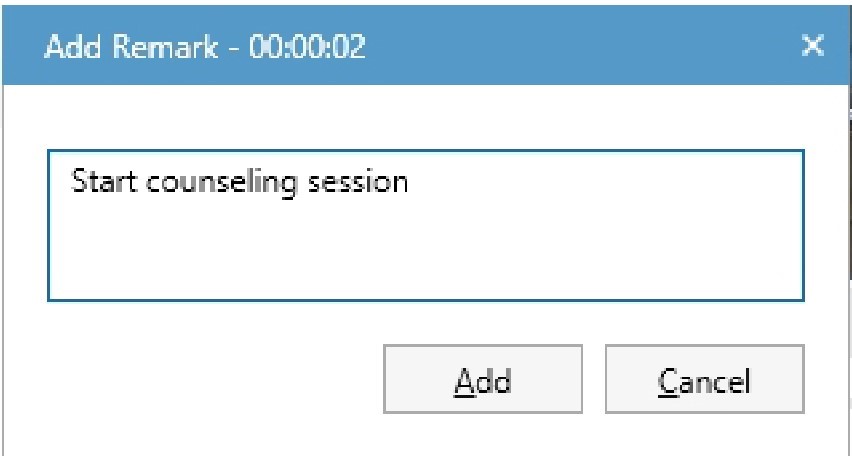
Wenn während der Sitzung etwas Interessantes passiert, das Sie nicht in der Liste **Codes** definiert haben, klicken Sie auf diese Schaltfläche, oder drücken Sie **Strg+R**. Geben Sie Freitext als Bemerkung ein.
<span style="mso-no-proof: yes;">![Enter free text as remark.jpg](https://bookstack.noldus.com/uploads/images/gallery/2024-07/jZndLJOPGZS93O0z-enter-free-text-as-remark.jpg)</span>

Wenn die<span style="mso-spacerun: yes;"> </span>Schaltfläche **Enter remark** (Bemerkung eingeben) nicht angezeigt wird, öffnen Sie die**<span style="mso-spacerun: yes;"> </span>**Registerkarte **Codes** oder **Events** unten links in Ihrem Fenster.

## Erstellen Sie Highlight-Videos

<span style="font-size: 11.0pt; line-height: 99%;">Wählen Sie bestimmte Punktereignisse von Interesse innerhalb von Sitzungen aus und erstellen Sie Highlight-Videos, die diese enthalten. So erstellen Sie ein solches Video:</span>

<span style="mso-bidi-font-size: 10.5pt; line-height: 99%; font-family: 'Calibri',sans-serif; mso-fareast-font-family: Calibri;"><span style="mso-list: Ignore;">1.<span style="font: 7.0pt 'Times New Roman';"> </span></span></span><span style="font-size: 11.0pt; line-height: 99%;">Öffnen einer **Session** (Sitzung) über das Dashboard</span>

<span style="mso-bidi-font-size: 10.5pt; line-height: 99%; font-family: 'Calibri',sans-serif; mso-fareast-font-family: Calibri;"><span style="mso-list: Ignore;">2.<span style="font: 7.0pt 'Times New Roman';"> </span></span></span><span style="font-size: 11.0pt; line-height: 99%;">Klicken Sie mit der rechten Maustaste auf eine beliebige Stelle in der Zeitleiste oder klicken Sie auf die **<span style="mso-spacerun: yes;"> </span>**Schaltfläche **Export Highlight-Video** in der oberen rechten Ecke der Zeitleiste.</span>

<span style="mso-no-proof: yes;">![Create highlight clip.png](https://bookstack.noldus.com/uploads/images/gallery/2024-07/K3zjjDnCCXSlHhGN-create-highlight-clip.png)</span>

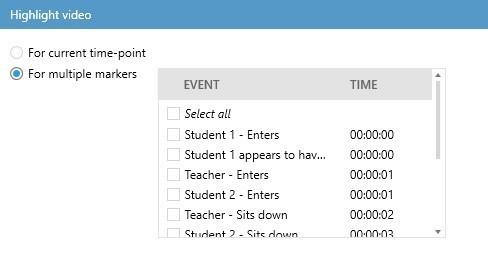
<span style="mso-bidi-font-size: 10.5pt; line-height: 99%; font-family: 'Calibri',sans-serif; mso-fareast-font-family: Calibri;"><span style="mso-list: Ignore;">3.<span style="font: 7.0pt 'Times New Roman';"> </span></span></span><span style="font-size: 11.0pt; line-height: 99%;">Wählen Sie die Punktereignisse der Sitzung aus, die Sie in Ihr Highlight-Video aufnehmen möchten. Verschieben Sie für ein einzelnes Ereignis den Schieberegler Zeit zu oder in die Nähe des jeweiligen Punktereignisses, und wählen Sie **For current timepoint** (Für aktuellen Zeitpunkt**)** aus. Wenn die interessierenden Punktereignisse mit einigen oder allen Markierungen verknüpft sind, die Sie in der Codeliste angegeben haben, die Sie zum Kommentieren Ihrer Sitzung verwendet haben, wählen Sie **For multiple Markers**.</span>

<span style="mso-bidi-font-size: 10.5pt; line-height: 99%; font-family: 'Calibri',sans-serif; mso-fareast-font-family: Calibri;"><span style="mso-list: Ignore;">4.<span style="font: 7.0pt 'Times New Roman';"> </span></span></span><span style="font-size: 11.0pt; line-height: 99%;">Wenn Sie sich für **For multiple Markers** entschieden haben, wird ein Fenster angezeigt, in dem Sie die Punktereignisse auswählen können, die Sie hervorheben möchten.</span>

<span style="mso-no-proof: yes;">![Select multiple markers for highlight clip.jpg](https://bookstack.noldus.com/uploads/images/gallery/2024-07/rHjS4PgtsYkiZaph-select-multiple-markers-for-highlight-clip.jpg)</span>

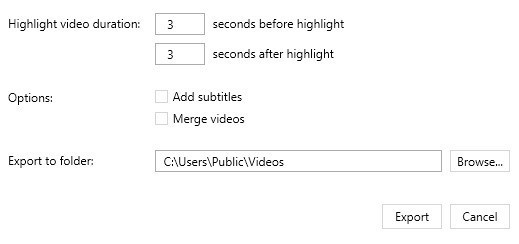
<span style="mso-bidi-font-size: 10.5pt; line-height: 99%; font-family: 'Calibri',sans-serif; mso-fareast-font-family: Calibri;"><span style="mso-list: Ignore;">5.<span style="font: 7.0pt 'Times New Roman';"> </span></span></span>[<span style="font-size: 11.0pt; line-height: 99%; color: #444444; text-decoration: none; text-underline: none;">Wenn Sie alle hervorgehobenen Punktereignisse in einem einzigen Video zusammenführen möchten, verwenden Sie</span>](https://bookstack.noldus.com/uploads/images/gallery/2024-02/JeJ8D4ym88WJ20SE-quickstart-highlight1.jpg)<span style="font-size: 11.0pt; line-height: 99%;"> die **Option Merge videos** (Videos zusammenführen) unter **Options**.</span>

<span style="mso-bidi-font-size: 10.5pt; line-height: 99%; font-family: 'Calibri',sans-serif; mso-fareast-font-family: Calibri;"><span style="mso-list: Ignore;">6.<span style="font: 7.0pt 'Times New Roman';"> </span></span></span><span style="font-size: 11.0pt; line-height: 99%;">Unabhängig davon, ob Sie sich für den aktuellen Zeitpunkt oder mehrere Marker entschieden haben, besteht der nächste Schritt darin, die Länge der Abschnitte einschließlich der ausgewählten Punktereignisse unter **Highlight video duration** festzulegen.</span>

<span style="mso-bidi-font-size: 10.5pt; line-height: 99%; font-family: 'Calibri',sans-serif; mso-fareast-font-family: Calibri;"><span style="mso-list: Ignore;">7.<span style="font: 7.0pt 'Times New Roman';"> </span></span></span><span style="font-size: 11.0pt; line-height: 99%;">Wenn Sie Untertitel hinzufügen möchten, aktivieren Sie das Kontrollkästchen **Add subtitles** unter **Options** (Optionen**)**.</span>

<span style="mso-bidi-font-size: 10.5pt; line-height: 99%; font-family: 'Calibri',sans-serif; mso-fareast-font-family: Calibri;"><span style="mso-list: Ignore;">8.<span style="font: 7.0pt 'Times New Roman';"> </span></span></span><span style="font-size: 11.0pt; line-height: 99%;">Wählen Sie unter **Export to folder** den Ordner aus, in dem Sie Ihr Highlight-Video speichern möchten, und wenn Sie mit allen Einstellungen fertig sind, klicken Sie auf **Export**.</span>

<span style="mso-no-proof: yes;">![Export highlight clip.jpg](https://bookstack.noldus.com/uploads/images/gallery/2024-07/3OBSvnyPgsDgAyN6-export-highlight-clip.jpg)</span>

<span style="font-size: 10.5pt; mso-bidi-font-size: 11.0pt; line-height: 107%; font-family: 'Arial',sans-serif; mso-fareast-font-family: Arial; color: #444444; mso-ansi-language: EN-US; mso-fareast-language: EN-US; mso-bidi-language: AR-SA;">  
</span>

**<span style="font-size: 26.0pt; mso-bidi-font-size: 11.0pt; line-height: 107%; color: #282828;"></span>**