# Upgrade your MediaRecorder license to continue working with your hardware key
## Aim
To configure your hardware key so that you can use it with the upgraded version of MediaRecorder.
## Prerequisites
- You upgraded MediaRecorder, or bought additional modules.
- You obtained an upgrade key for your MediaRecorder license.
## Procedure
1. Insert the hardware key into your computer and start the new version of MediaRecorder.
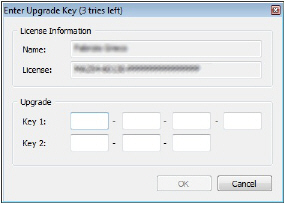
2. The system automatically detects the old license on the hardware key and the **Enter Upgrade Key** window appears. Enter the key codes that were supplied to you by Noldus IT. These numbers are normally sent by e-mail or are present in your welcome letter.
Notes
- MediaRecorder 6.5 can be installed parallel to MediaRecorder 5, however, we recommend to uninstall older versions.
- If you have a previous version of MediaRecorder on a computer with an operating system other than the 64-bit versions of Windows 10, you should either upgrade Windows, or install MediaRecorder on a computer with one of these operating systems.
- After upgrading to MediaRecorder 6.5, new settings should be made for the cameras.