# Set camera IP address
## Aim
To make sure that the IP address of the GigE camera and that Ethernet interface board physically connected to that camera match. This ensures reliable data transfer to and from the camera.
## Prerequisites
- You followed the procedure in [Ethernet card setup](https://bookstack.noldus.com/link/478#bkmrk-page-title)
- You connected the camera. This is the same procedure as connecting an IP camera.
See [Connect IP cameras to the PC](https://bookstack.noldus.com/link/481#bkmrk-page-title) in [Set up IP cameras](https://bookstack.noldus.com/link/476#bkmrk-page-title)
## Procedure
1. 1.Double-click the **Pylon IP Configuration tool** icon on the desktop. [](https://bookstack.noldus.com/uploads/images/gallery/2023-12/9bNPAJKTEOO1ml3Y-image.png)
2. Select the camera under **Local Area Connection**. [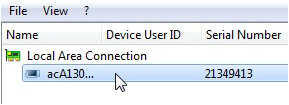](https://bookstack.noldus.com/uploads/images/gallery/2023-12/eX1Y7gIzgO681bYm-image.png)
3. Fill in the **IP Address** and **Subnet Mask** fields under **Static IP Address** as supplied by your system administrator. [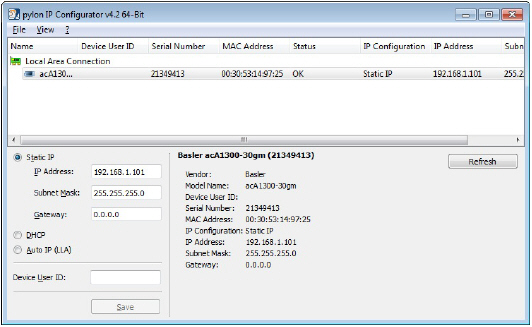](https://bookstack.noldus.com/uploads/images/gallery/2023-12/lwUo5LfiagGEBA2J-image.png)
4. Click **Save** and then **Close**.
5. If you have multiple cameras, connect the next one and repeat the steps above.
### Note
Your cameras should have the same Firmware version. Check this in the Pylon Viewer software. In the **Features** panel, under **Device Information**, check **Firmware Version**. If the cameras do not have the same firmware, an upgrade/downgrade must be done.
[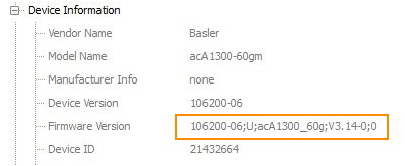](https://bookstack.noldus.com/uploads/images/gallery/2023-12/JWgfhUbBCwRDYPYw-image.png)