# Select ONVIF cameras in MediaRecorder
## Aim
To select a camera that supports ONVIF Profile S in MediaRecorder.
If your device does not support ONVIF, see [Select devices that do not support ONVIF in MediaRecorder](https://bookstack.noldus.com/link/489#bkmrk-page-title) instead.
## Prerequisites
- You have Axis IP cameras that are supported with MediaRecorder.
See [Supported IP cameras](https://bookstack.noldus.com/link/412#bkmrk-supported-ip-cameras) in [Recording devices](https://bookstack.noldus.com/link/410#bkmrk-page-title)
- You followed the procedure in [Ethernet card setup](https://bookstack.noldus.com/link/478#bkmrk-page-title)
- You followed the procedure in [Camera setup](https://bookstack.noldus.com/link/482#bkmrk-page-title)
- You installed MediaRecorder
See [Installation](https://bookstack.noldus.com/link/409#bkmrk-page-title)
- You connected all cameras to the computer with MediaRecorder.
## Procedure
1. Open MediaRecorder and choose **File** > **Video Settings** or click **Video Settings**. [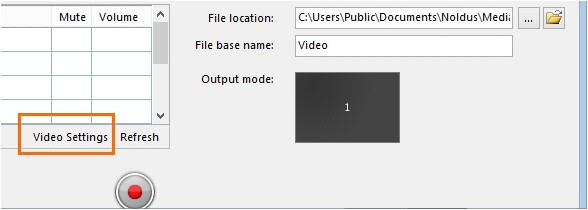](https://bookstack.noldus.com/uploads/images/gallery/2023-12/wKr7RoiKkhGRx4sq-image.png)
2. Select the checkbox in front of the video channel and choose **RTSP IP Camera (Noldus RTSP Source Filter)**. [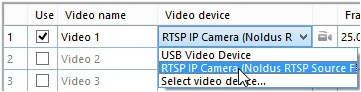](https://bookstack.noldus.com/uploads/images/gallery/2023-12/UZHOUqx4aeRKzBFT-image.png)
3. Click the **Advanced Video Settings** button. [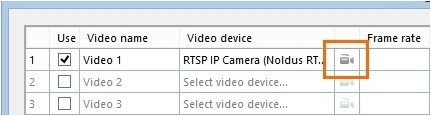](https://bookstack.noldus.com/uploads/images/gallery/2023-12/wiDp1I18H8IxZnv5-image.png)
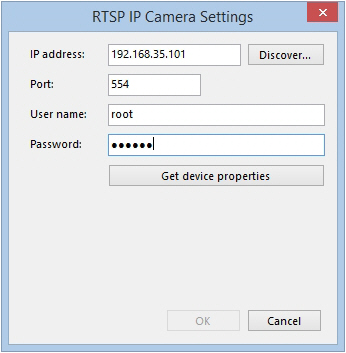
4. A list with ONVIF cameras in the network appears. Select the camera.
5. Enter the ONVIF **User name** and ONVIF **Password** for your camera. If you obtained cameras from Noldus IT, the ONVIF user name is *root* and the ONVIF password is *Noldus*.
**TIP** To select another camera, click the **Discover** button to display the list with ONVIF cameras in the network.
**TIP** If you have several cameras with the same ONVIF User name and ONVIF Password choose File[ ](https://bookstack.noldus.com/link/409#bkmrk-page-title)> **Preferences** > **IP camera settings**. Select **Use default IP camera user name and password** and enter the credentials. You can now skip step 5 and 6, the camera is detected automatically.
6. Click **Get device properties**.
[](https://bookstack.noldus.com/uploads/images/gallery/2023-12/vsSfAwkxbaJBcCTc-image.png)
7. The **Encoding and Quality** fields appears with the default video format, frame rate and resolution of the camera.
[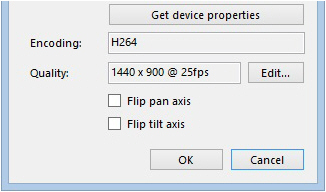](https://bookstack.noldus.com/uploads/images/gallery/2023-12/79aOvFlVgGmlY0Nx-image.png)
8. Optionally, click **Edit** and select another frame rate or resolution. Click **Update** when done. [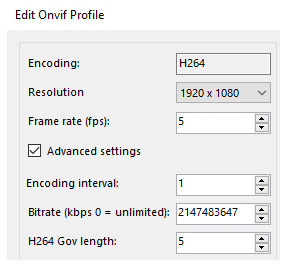](https://bookstack.noldus.com/uploads/images/gallery/2023-12/NMdhDpI9vjLbMOue-image.png)
For low frame rate recordings, it is important to lower the **H264 Gov length** too on the same screen, under **Advanced settings**. For 5 fps, set the **Gov length** between 5 and 10, for 1 fps recording between 1 and 2. A lower **Gov length** will result in larger files but better image.
**TIP** It is also possible to change the frame rate and resolution in the table with selected video devices.
[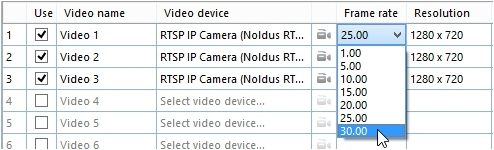](https://bookstack.noldus.com/uploads/images/gallery/2023-12/276JrGlroPANMY6U-image.png)
You may still need to adjust the Gov length for optimal results.
9. Optionally, adjust the video quality, for example to decrease the video file size, but we recommend to only do this when problems with video quality or data transfer over the network occur.
See [Adjust advanced video quality options](https://bookstack.noldus.com/link/488#bkmrk-page-title)
10. .Click **Close** when done.
11. You may want to reverse the direction the camera moves with Pan and Tilt). To do so, select the checkbox Flip pan axis (horizontal movement) or Flip tilt axis (vertical movement) or both.
[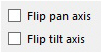](https://bookstack.noldus.com/uploads/images/gallery/2023-12/FYdabSlul1y6GBeT-image.png)
12. Click **OK**.
13. Select the microphone from the **Audio device** list. To select the microphone from the camera, or a microphone connected to it, select **RTSP IP camera (Noldus RTSP Source Filter**) from the Audio device list.
14. Close the **Settings** window and tap on the microphone. Check the green bar next to the video device to see whether you selected the correct microphone.
15. Continue with [Record video](https://bookstack.noldus.com/link/439#bkmrk-page-title)
## Notes
- If you bought cameras yourself, see [Create ONVIF User name and Password](https://bookstack.noldus.com/link/485#bkmrk-create-onvif-user-na) for the procedure to create an ONVIF user name and ONVIF password.
- If the default Port 554 is already in use, ask your system administrator for help to select another one.
- See [Create audio settings](https://bookstack.noldus.com/link/486#bkmrk-page-title) how to adjust the recording volume.