# Select an audio device
## Aim
To select the audio source.
## Prerequisites
- Your devices are connected to the computer with MediaRecorder, and, if applicable, switched on.
- MediaRecorder is open.
- You opened the **Video Settings** window. To do so, choose **File > Video Settings**, or click **Video Settings** in the main window.
## Procedure
1. In the **Video Settings** window, select the microphones under **Audio device**. Choose between your computer microphone, a separate microphone, or the audio stream of your camera. Choose **No audio** if you do not wish to record audio.
2. Optionally record the same audio stream in all videos. To do so, select this checkbox. It means that the device defined as Audio device 1 will supply the audio stream for all your videos.[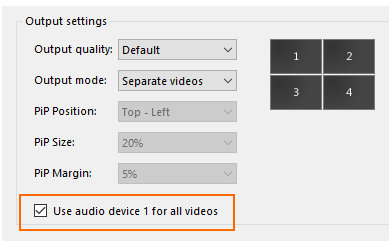](https://bookstack.noldus.com/uploads/images/gallery/2023-11/wZBN5kMjec3ohcfX-image.png)
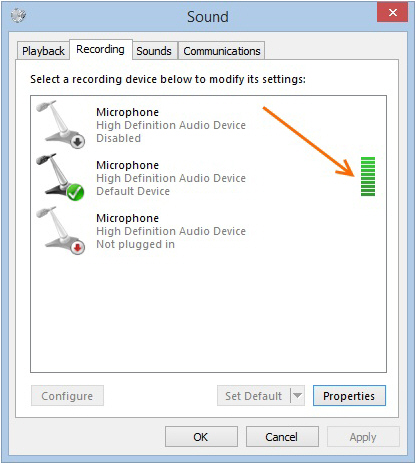
Check that the green bar is maximal when speech level is normal.
[](https://bookstack.noldus.com/uploads/images/gallery/2023-11/hk3Zymr0gugLlfqi-image.png)
Please note that in Picture-in-Picture mode, you may select which audio source to use for all the videos. This may be important if the first video is the screencapture device, which does not record audio. To do so, select this checkbox: [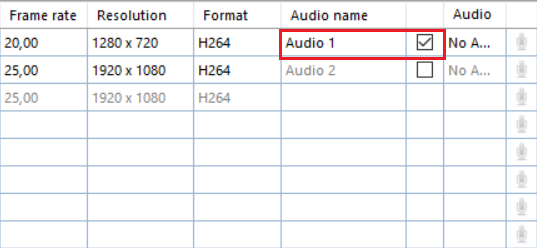](https://bookstack.noldus.com/uploads/images/gallery/2023-12/HdoXCWODecaZpbzt-select-audio-source-in-picture-in-picture-szerk.png) (For the Picture-in Picture mode, see the Output settings in [Video file options](https://bookstack.noldus.com/link/423#bkmrk-page-title)).
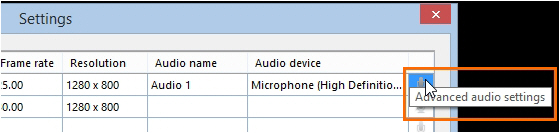
3. Click the microphone button for **Audio settings**.
[](https://bookstack.noldus.com/uploads/images/gallery/2023-11/0HOHkOSeHtt2gXEt-image.png)
The available options depend on your microphones. Move the sliders to adjust the recording volume.
To check the recording volume, right-click the speaker icon in the bottom-right corner of your window and select **Recording devices**.
[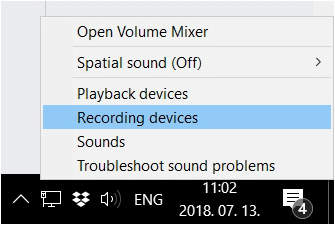](https://bookstack.noldus.com/uploads/images/gallery/2023-11/aH1foH3w3mma1wgG-image.png)
4. Optionally, change the names in the **Audio name** column.
5. Optionally, adjust the [Video file options](https://bookstack.noldus.com/link/423#bkmrk-page-title)
6. When satisfied with the settings click **OK** to return to the main window and [Record your videos](https://bookstack.noldus.com/link/424#bkmrk-page-title)
## Note
Audio is needed and has been tested only for cameras that are supported in The Observer XT.