# Select a video device
## Aim
To select the cameras for recording.
## Prerequisites
- Your devices are connected to the computer with MediaRecorder, and, if applicable, switched on.
- MediaRecorder is open.
- You opened the **Video Settings** window. To do so, choose **File > Video Settings**, or click **Video Settings** in the main window.
[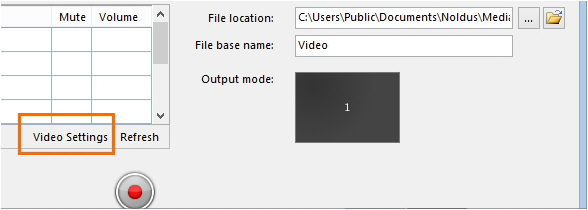](https://bookstack.noldus.com/uploads/images/gallery/2023-11/x2RT1DotWuGFBokx-image.png)
**tip** If the **Video Settings** button is not visible, the recording properties may be closed. Click **Recording Properties** at the bottom of your window. By default the recording properties are open.
[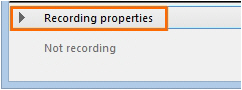](https://bookstack.noldus.com/uploads/images/gallery/2023-11/Iwunm6oipT5b7Arj-image.png)
## Procedure
In the **Video Settings** window:
1. Select your camera from the **Video device** list.
[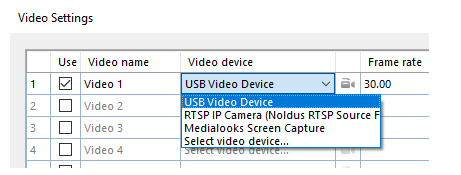](https://bookstack.noldus.com/uploads/images/gallery/2023-11/U62KU3wyH2OzsJbV-image.png)
**IMPORTANT**
If you have IP cameras see [Set up IP cameras](https://bookstack.noldus.com/link/476#bkmrk-page-title) how to set these up and select them in MediaRecorder.
If you use the Screen Capture tool, see[ Use of the Screen Capture tool](https://bookstack.noldus.com/link/419#bkmrk-page-title) on how to select the built-in screen capture device.
2. Select the preferred frame rate and resolution. The options depend on your type of camera.[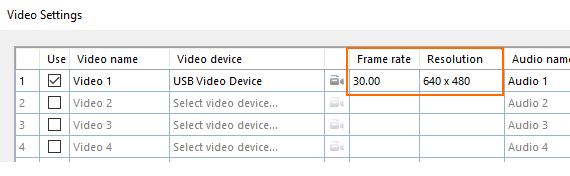](https://bookstack.noldus.com/uploads/images/gallery/2023-11/4pWp8alq97i6uJtX-image.png)
3. For advanced camera settings, click the video symbol next to the name of your camera. The available options depend on your camera. For some cameras you can zoom and adjust settings for brightness and contrast. [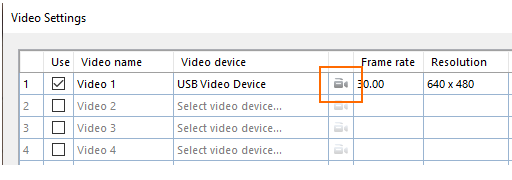](https://bookstack.noldus.com/uploads/images/gallery/2023-11/XToTfiHpljrUkfq6-image.png)
4. Optionally change the names in the **Video name** column, to, for example, Webcam, or IP camera.
5. To record audio as well, continue with [Select an audio device](https://bookstack.noldus.com/link/422#bkmrk-page-title)
6. Optionally adjust [Video file options](https://bookstack.noldus.com/link/423#bkmrk-page-title)
7. When satisfied with the settings click **OK** to return to the main window and record your videos (see [Record your videos](https://bookstack.noldus.com/link/424#bkmrk-page-title))
## Note
### Frame rate and resolution
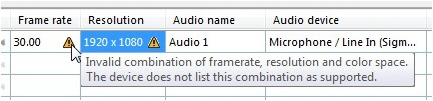
By default, the optimal combination of frame rate and resolution for the camera is selected. If you increase the frame rate, the maximum resolution available goes down and vice versa. If you select an impossible combination of frame rate and resolution and format, MediaRecorder gives a warning (see below).
[](https://bookstack.noldus.com/uploads/images/gallery/2023-11/j3JGyxgrenG2H5Iv-image.png)