# Record your videos
## Aim
To create video files from the video stream of the connected recording devices.
## Prerequisites
- Your devices are connected to the computer with MediaRecorder, and, if applicable, switched on.
- MediaRecorder is open.
- You selected the cameras and, optionally, microphones and specified the output of the video files in the **Video Settings** window (**File > Video Settings**).
## Procedure
1. When you selected all settings in the **Video Settings** window, click **OK** to return to the Main window. You will see a preview of the cameras.
[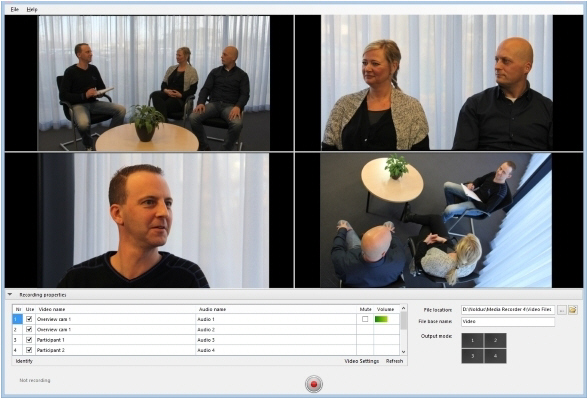](https://bookstack.noldus.com/uploads/images/gallery/2023-11/eECAILDgaQ9lyAYs-image.png)
2. Optionally, adjust options like the video file location, the video file base name or the order of the video files. See [Options](https://bookstack.noldus.com/link/440#bkmrk-page-title)
3. Press the **Start recording** button.
[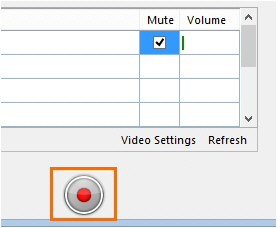](https://bookstack.noldus.com/uploads/images/gallery/2023-11/hvrNl7QURL2Dv8JH-image.png)
4. A pop-up window will appear, informing you about Noldus's Data Transparency Policy. Read it carefully before clicking the **I will inform the participants** button. You can also check the box **Don't show me again** to prevent further occurrence. [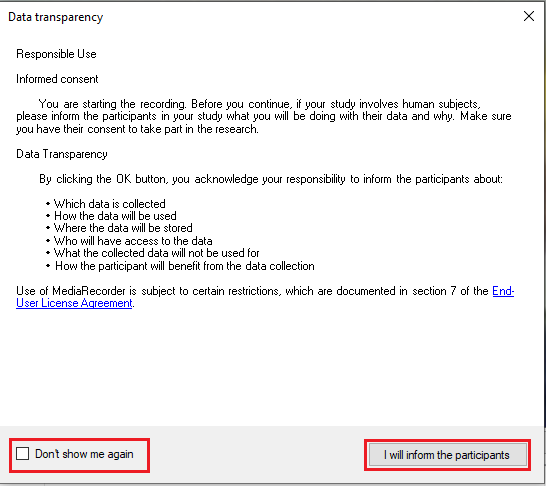](https://bookstack.noldus.com/uploads/images/gallery/2023-12/Ue9RmA3uggUxv49y-data-transparency-szerk.png)
5. The button changes into the **Stop Recording** button and the Recording timer starts running.
[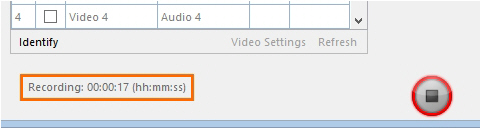](https://bookstack.noldus.com/uploads/images/gallery/2023-11/9EqxLa6lEQWtwLZZ-image.png)
6. Press the button again to stop recording. Recording stops automatically when you specified a [Maximum recording time](https://bookstack.noldus.com/link/423#bkmrk-maximum-recording-ti).
## Note
If you have IP cameras, see [Pan, Tilt, Zoom control with IP cameras](https://bookstack.noldus.com/link/435#bkmrk-page-title) how to change the camera view before or during recording.