# Record at a predefined time
## Aim
To schedule video recording. This is especially useful when you want to start recording in the middle of the night, or you do not want to disturb the test subjects by handling the video software.
**IMPORTANT** The procedure below is an example of the possibilities of Windows Task Scheduler, which is a default program in Windows 10. Since Windows Task Scheduler is a Microsoft program, Noldus IT offers no support for this feature.
## Procedure
1. Type **Task Scheduler** in the Apps window.
2. Choose **Action > Create Task**.
3. In the **General** tab, type a name in the **Name** field, for example MediaRecorder with Webcam.
4. Optionally enter other settings in this tab and open the tab **Triggers**.
5. Click the button **New**.
6. Select **On a schedule** from the list next to **Begin the task**:
7. Enter the start time of the command in the **Start** field and choose whether you want to send the command once, daily, weekly or monthly. The window will look like this: [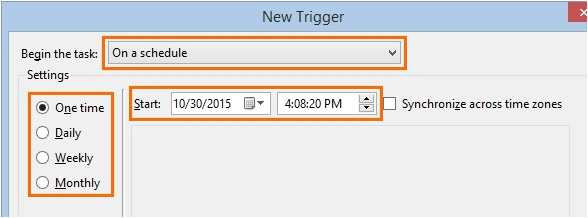](https://bookstack.noldus.com/uploads/images/gallery/2023-11/cbOPvk5RnAoHFPyM-image.png)
8. Optionally, enter **Advanced Settings** and click **OK**.
9. Click the **Actions** tab and choose **New**.
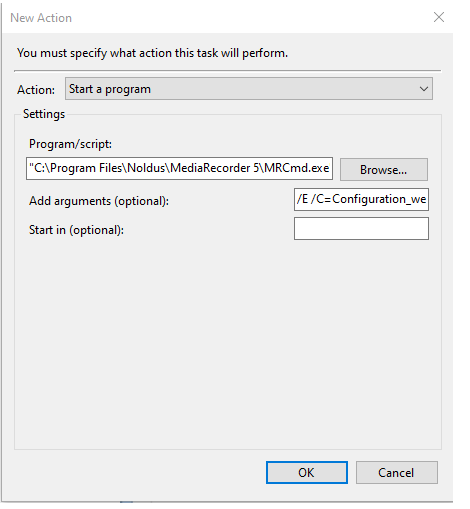
10. Choose **Start a program** next to **Action**.
11. Browse to **MRCmd.exe**.
12. Enter the command in the **Add arguments (optional):** field. For example, to start MediaRecorder and load the configuration file for your webcam, type:
/E /C=Configuration\_webcam.mrs
If the configuration file is not located in the folder C:\\Users\\Public\\Public documents\\Noldus\\MediaRecorder, you must type the full path. If the file name or path contains spaces, you must use quotation marks at both ends.
See also [Save the camera settings](https://bookstack.noldus.com/link/434#bkmrk-page-title) in [Record video](https://bookstack.noldus.com/link/439#bkmrk-page-title)
Your window will look like this:
[](https://bookstack.noldus.com/uploads/images/gallery/2023-11/EHN91JLwQGHk5xC9-image.png)
13. Optionally select or change any settings on the other tabs.
14. Similarly, you can create tasks to start and stop recording at a predefined time with the commands **/R** and **/S** and to close MediaRecorder with the command **/X**. Create a task for each command.
## Notes
- **IMPORTANT** Allow enough time between the commands. If a command is sent before the previous one is carried out, the second command is not carried out. For example, if the command Start Recording is sent before MediaRecorder is completely open, recording does not start.
- By default, the tasks are stored in the folder **Task Scheduler Library**. To edit or delete a task, click this folder in the tree on the left side and select the task in the window Task Scheduler Library. In the **Actions** pane, click **Properties**, or **Delete**.