# Make sure The Observer XT can access the MediaRecorder video files
(for 2-computer setups)
## Aim
To make sure The Observer XT can access the videos recorded by MediaRecorder. The videos are not copied to The Observer XT. The Observer XT creates a link to the MediaRecorder videos.
## Procedure
Carry out the following steps:
1. [Share the folder where MediaRecorder stores its video files](https://bookstack.noldus.com/link/445#bkmrk-share-the-folder-whe-1)
2. [Switch off password protected sharing on the MediaRecorder computer](https://bookstack.noldus.com/link/445#bkmrk-switch-off-password-)
3. [Map the shared folder with MediaRecorder video files](https://bookstack.noldus.com/link/445#bkmrk-map-the-shared-folde)
## Share the folder where MediaRecorder stores its video files
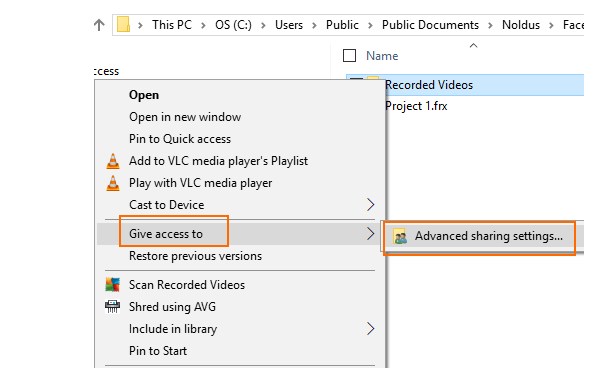
1. Right-click the folder where the video files are going to be stored, which is by default C:\\Users\\Public\\Documents\\Noldus\\MediaRecorder\\Video Files and select **Give access** to and then **Advanced Sharing Settings**.
[](https://bookstack.noldus.com/uploads/images/gallery/2023-11/LwXeB7y4z9w9S5nc-image.png)
2. Change the sharing options for all your network profiles (‘Private’, ‘Guest or Public’ and ‘Domain’): select the option **Turn on file and printer sharing** for all your profiles.
3. Under ‘All Networks’ select the option **Turn on sharing so anyone with network access can read and write files in the Public folders**. Then click **Save Changes**.
## Switch off password protected sharing on the MediaRecorder computer
This procedure is needed to make sure that the folder where MediaRecorder stores its videos files can be accessed without a password by the computer with The Observer XT.
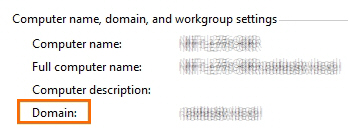
The procedure differs for Windows workgroups and domains. To see whether the MediaRecorder computer is in a workgroup or a domain, open the **Control Panel** and choose **System**. The type of network is listed under **Computer name**, **domain**, and **workgroup settings**.
[](https://bookstack.noldus.com/uploads/images/gallery/2023-11/Ju8Pty4c7ovDRBCl-image.png)
### Procedure for workgroup
1. Follow the procedure in [Share the folder where MediaRecorder stores its video files](https://bookstack.noldus.com/link/445#bkmrk-share-the-folder-whe-1) to open the **Advanced sharing** settings.
2. Under **Password protected sharing**, select the option **Turn off password protected sharing**.
Important: If you do not see this option, most likely your computer is in a domain, not a workgroup. Carry out the Procedure for domain below.
### Procedure for domain
1. Press the **Windows key** + **R**.
2. Type **lusrmgr.msc** and press **OK**.
3. Open the **Users** folder and double-click **Guest**.
4. Deselect **Account is disabled** and click **OK** and close the lusrmgr window.
5. Press the **Windows key** + **R**.
6. Type **gpedit.msc** and press **OK**.
7. Open Computer Configuration\\Windows Settings\\Security Settings\\Local Policies\\User Rights Assignment and double-click **Deny access to this computer from the network.**
8. Click **Guest** and then choose **Remove** > **OK**.
9. Close the **Local Group Policy Editor** window.
## Map the shared folder with MediaRecorder video files
Carry out this procedure on both computers.
1. Open **File Explorer** and then **This PC**.
2. Click **Computer** and then click the **Map network drive** icon. [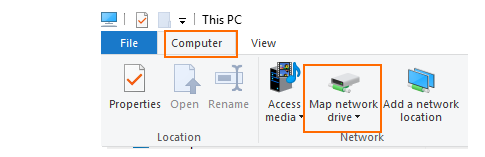](https://bookstack.noldus.com/uploads/images/gallery/2023-11/Zz9YiNIN0Gx04SNt-image.png)
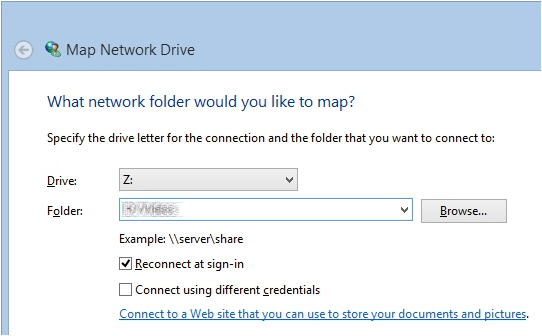
3. Choose a name for the drive and browse to the shared folder.
**Important****:** Make sure you select the same drive on both computers.
4. Click **Finish**.
[](https://bookstack.noldus.com/uploads/images/gallery/2023-11/hnftDIEjxrXzaiBG-image.png)
## Note
- When you now start the computer with The Observer XT, you need to enter the login details for the computer with MediaRecorder.