# Install MediaRecorder with the camera drivers
## Aim
To install the software that allows communication between your camera and the operating system of the computer with MediaRecorder.
## Prerequisites
- You installed the Ethernet card.
See [Install the Ethernet card](https://bookstack.noldus.com/link/479#bkmrk-page-title) in [Set up IP cameras](https://bookstack.noldus.com/link/476#bkmrk-page-title)
- You gave the Ethernet card a fixed IP address.
See [Set Ethernet card IP address](https://bookstack.noldus.com/link/480#bkmrk-page-title) in [Set up IP cameras](https://bookstack.noldus.com/link/476#bkmrk-page-title)
- You carried out the prerequisite steps before installing MediaRecorder.
See [The steps to install MediaRecorder](https://bookstack.noldus.com/link/408#bkmrk-page-title) in [Installation](https://bookstack.noldus.com/link/409#bkmrk-page-title)
## Procedure
important If you upgraded from a previous MediaRecorder version and have old drivers for the camera installed, uninstall them first.
See [To uninstall old drivers](https://bookstack.noldus.com/link/492#bkmrk-to-uninstall-old-dri)
### If you did not yet install MediaRecorder
1. Download the installation files from my.noldus.com, and extract the contents.
2. Browse to the file **MediaRecorder 6 Setup.exe** and double-click it.
3. In the **Drivers and tools** field, choose **Basler GigE Camera driver** - pylon \[version number\].
4. Click **Next**, accept the License Agreement and click **Install**.
### If you already installed MediaRecorder
Follow the instructions in [If you did not yet install MediaRecorder](https://bookstack.noldus.com/link/492#bkmrk-if-you-did-not-yet-i) and choose **Modify** in the installation window. Select **Basler GigE Camera driver** - pylon \[version number\] and click **Update**.
Alternatively:
1. Download the installation files from my.noldus.com.
2. Browse to **Drivers\\Basler\\5.0.9.10388**
3. Double-click the file **Basler\_pylon\_5.0.9.10388**.
4. Agree to the terms in the License Agreement.
5. In the Profiles window, choose **Camera user** and click **Next**.
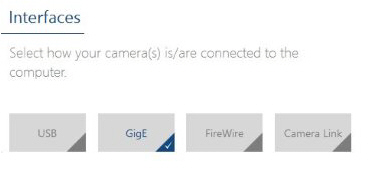
6. As camera type, choose **GigE** and click **Next**.
[](https://bookstack.noldus.com/uploads/images/gallery/2023-12/eClXXpYzrlJIAA68-image.png)
7. Optionally, change the location where the camera drivers are stored and choose **Next** > **Install**.
### To uninstall old drivers
1. Open the Control Panel
2. Choose **Program and Features**.
3. Select the Basler camera driver and choose **Uninstall**.