# Configure the Basler USB 3 camera
## Aim
To adjust settings in the USB 3 camera, like the video frame rate, resolution, and exposure.
**NOTE** The camera settings are stored by the camera itself, not on the PC. When you work with multiple cameras, repeat the procedure for each camera.
## Procedure
1\. Make sure MediaRecorder (and EthoVision XT, when present on the computer) are not running.
2\. Start the **Basler Pylon Viewer** software that comes with the USB 3 camera.
[](https://bookstack.noldus.com/uploads/images/gallery/2023-12/sW14ePoY0reRVCJA-pylon-viwer-icon.png)
**NOTE** The Basler Pylon Viewer software is installed automatically when you install the camera drivers.
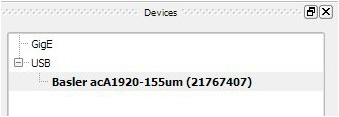
3\. In the **Devices** panel, under **USB**, double-click the Basler camera.
[](https://bookstack.noldus.com/uploads/images/gallery/2023-12/MFl40aeC3H0i6eRu-image.png)
4\. Under **Features**, open the item **Basler acA1920-155um** and choose the settings you would like to change. For details, see the corresponding settings in [Configure the cameras](https://bookstack.noldus.com/link/494#bkmrk-page-title) in [Set up GigE cameras](https://bookstack.noldus.com/link/475#bkmrk-page-title).
5\. Save the settings under **User Set Control**.
### See also
- [Supported USB cameras](https://bookstack.noldus.com/link/413#bkmrk-page-title) in [Recording devices](https://bookstack.noldus.com/link/410#bkmrk-page-title)