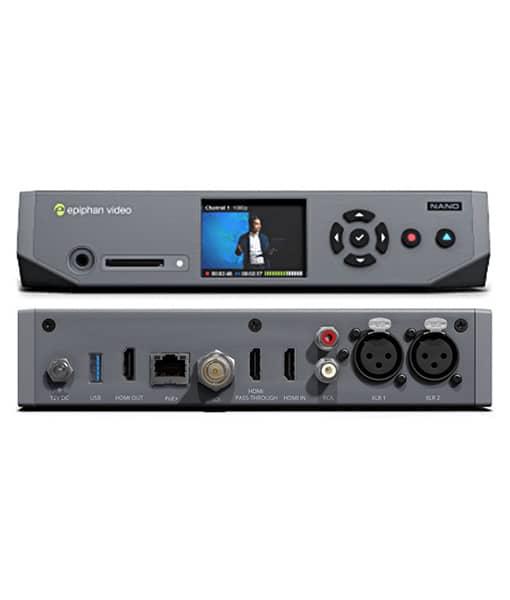
# Set up the Epiphan Pearl Nano screen capture device
# Set up the Epiphan Pearl Nano screen capture device
[](https://bookstack.noldus.com/uploads/images/gallery/2024-01/GBgJsNkazOY8BlI9-pearl-nano.jpg)
## Aim
To connect the Epiphan Pearl Nano screen capture device and make the necessary settings.
## Prerequisites
,
- The network allows data transfer of at least 1 Gb per second.
- We recommend to use a dedicated network for the cameras.
- The cables must be suitable for Gigabit Ethernet. The minimum cable quality is CAT5e
[https://en.wikipedia.org/wiki/Category\_5\_cable](https://en.wikipedia.org/wiki/Category_5_cable)
## Procedure
1. Install MediaRecorder with its prerequisites.
See [Installation](https://bookstack.noldus.com/link/409#bkmrk-page-title)
2. Using a HDMI cable, connect the output of the video source to the HDMI IN port on the back panel of the Epiphan Pearl Nano device. [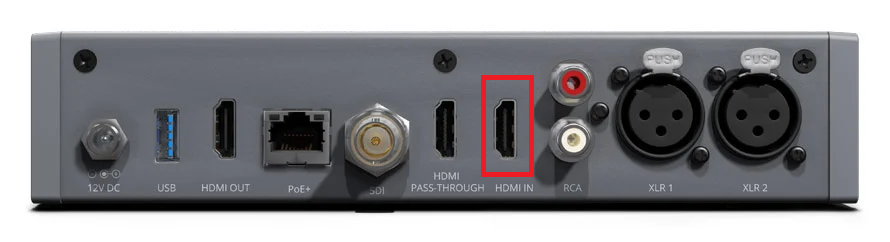](https://bookstack.noldus.com/uploads/images/gallery/2024-01/GxoW0N3n320AvRMX-epiphan-pearlnano-backpanel1.png)
3. Using a HDMI cable, connect the control monitor to the HDMI PASS THROUGH port on the back panel of the Epiphan Pearl Nano device. [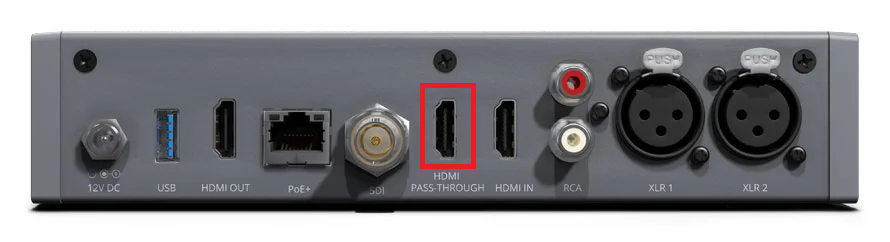](https://bookstack.noldus.com/uploads/images/gallery/2024-01/CwfLCkd5B5g26Rt0-epiphan-pearlnano-backpanel2.png)
4. Use the control keys on the front panel to configure the system parameters. [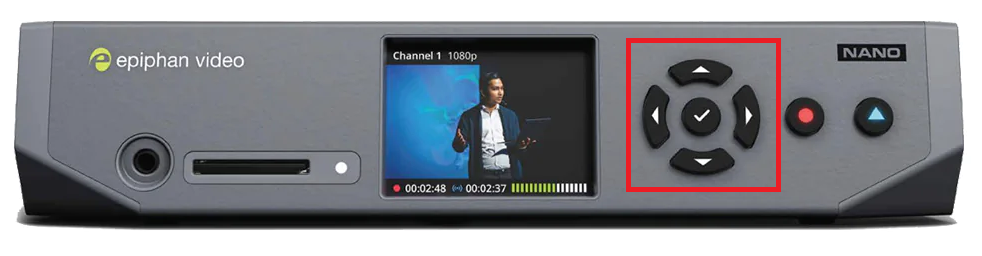](https://bookstack.noldus.com/uploads/images/gallery/2024-01/7CJcdCLUsiSaiejV-epiphan-pearlnano-frontpanel.png)
5. Using the right arrow key, navigate to **System Status**. [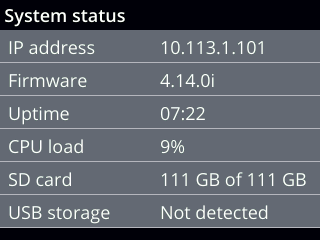](https://bookstack.noldus.com/uploads/images/gallery/2024-01/T92jurvFl47T9VM0-epiphan-systemstatus.png)
6. Here, you can get the network IP address of your device and you can also check the firmware version. It is recommended to use the latest firmware version. If you need an update, register you device at Epiphan ([https://www.epiphan.com/support/product-registration/)](https://www.epiphan.com/support/product-registration/))
7. Using the left arrow key, navigate to **Menu.** Within Menu, navigate to **System > Network**. [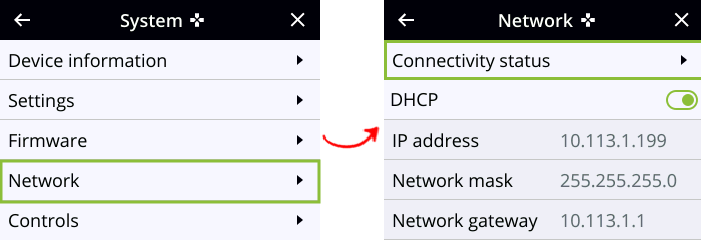](https://bookstack.noldus.com/uploads/images/gallery/2024-01/f7yeAa8IihPMBpG4-epiphan-system-network.png)
8. Disable **DHCP**. Set **IP address** manually. Define an IP address range similar to that of the other cameras.
9. By default, do not change **Network mask** and **Network gateway** settings. If uncertain, consult your system administrator.
10. Open your internet browser. Use the IP address of your Epiphan Pearl Nano device to access the Pearl Admin panel. For this, include /admin to access the Admin panel.[](https://bookstack.noldus.com/uploads/images/gallery/2024-01/zPUfJDVd3GxtxSQi-epiphan-admin.png)
11. Using the Pearl Admin panel, configure video encoding. Go to **Channel(s)**, select your channel and click **Encoding.** In **Video settings**, make sure Current signal resolution is used as frame size (have the checkbox checked).[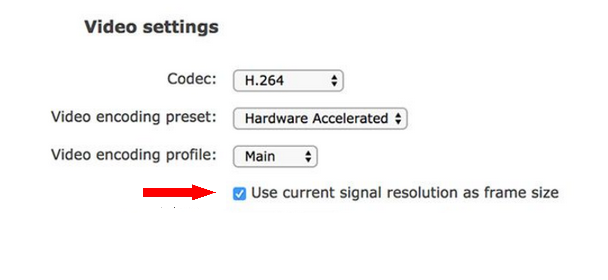](https://bookstack.noldus.com/uploads/images/gallery/2024-01/nRNVvcgIDP4X08n2-epiphan-use-current-signal-resolution.png)
12. Set **Key frame interval** to 1/2 sec. At **Limit frame rate**, it is not recommended to change the default value 30. If you use a higher frame rate, it might jeopardize your recording operation. Please do not change the default **Bitrate** value (auto).
13. Open MediaRecorder and choose **File > Video settings** or click **Video settings.**
14. In **Video Settings**, select the option **RTSP IP Camera (Noldus RTSP Source Filter). **Please note that the Epiphan Pearl Nano device is NOT an ONVIF device! For the details, see [Select devices that do not support ONVIF in MediaRecorder](https://bookstack.noldus.com/link/489#bkmrk-page-title). Please note that the RTSP connection string for this device is /stream.sdp
15. Please note that you cannot use the Epiphan Pearl Nano device to make audio recordings! Use another audio device for the purpose. For the details, see [Select an audio device](https://bookstack.noldus.com/link/422#bkmrk-page-title).