# Record video
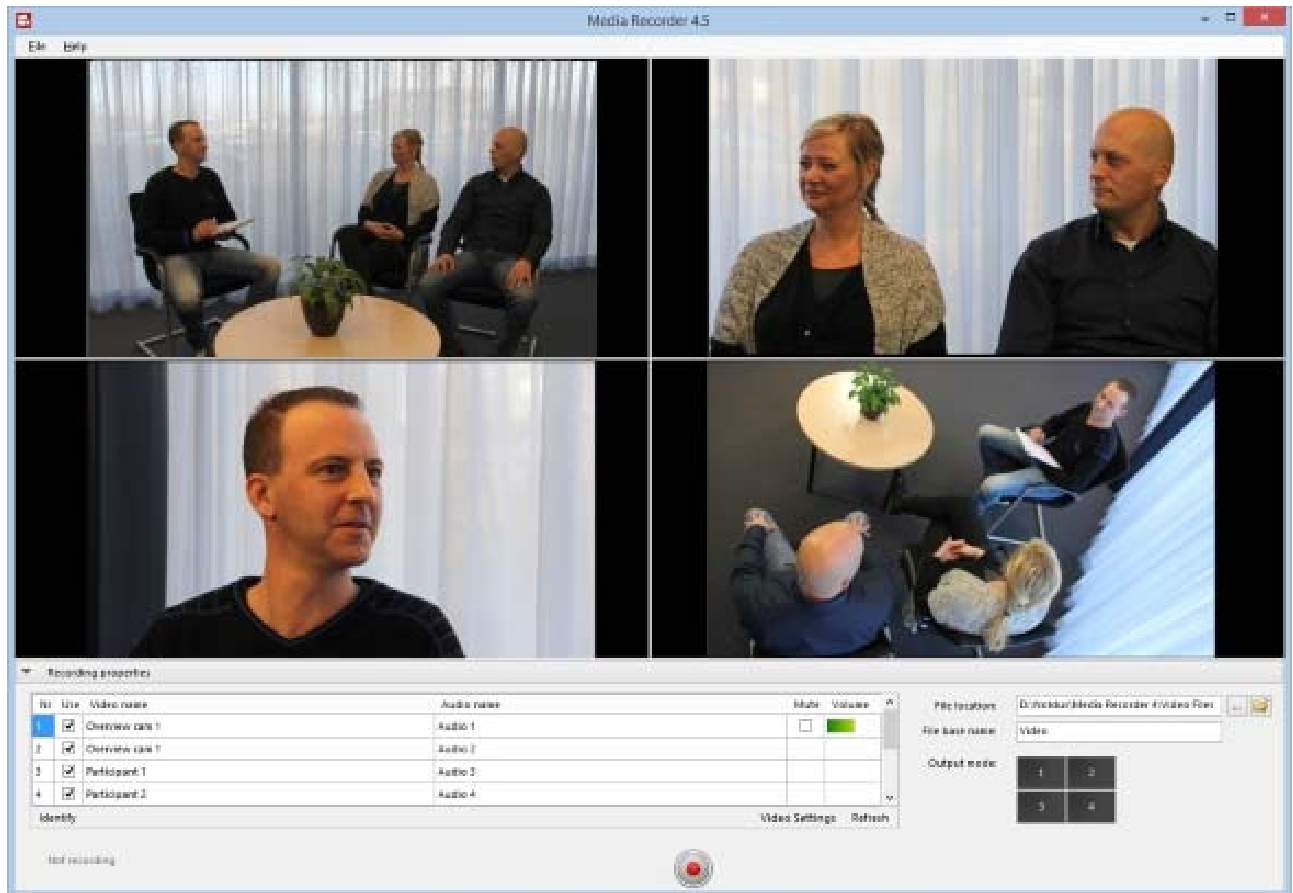
When you selected all cameras, you see a preview in the main MediaRecorder window.
[](https://bookstack.noldus.com/uploads/images/gallery/2023-11/B8WOlxqT4rxC9rOm-image.png)
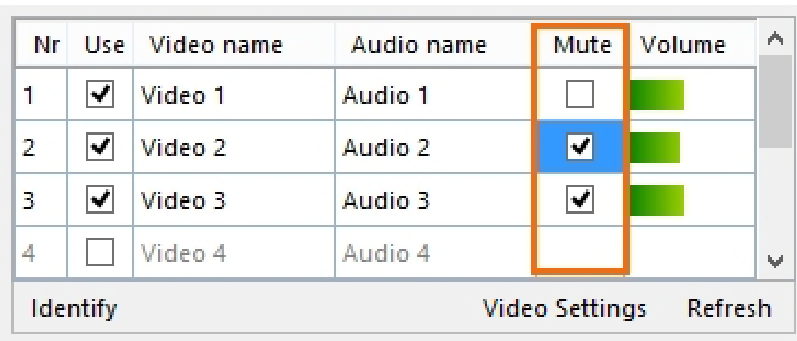
**TIP** If you selected multiple microphones, it can be useful to mute all but one audio channel in the preview. Select the audio source in the **Mute** column of the table under the preview. Muting audio in the preview does not influence the recording.
[](https://bookstack.noldus.com/uploads/images/gallery/2023-11/bMLSrS5btCuThMm1-image.png)
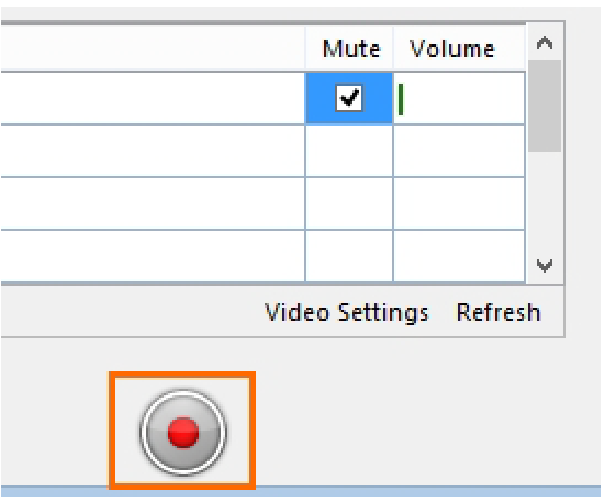
To start recording, press the **Start recording** button.
[](https://bookstack.noldus.com/uploads/images/gallery/2023-11/0Mzgtc2Vc1QKZxRZ-image.png)
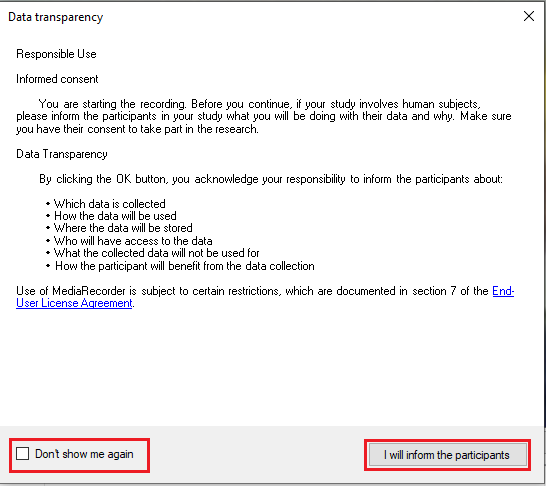
A pop-up window will appear, informing you about Noldus's Data Transparency Policy. Read it carefully before clicking the **I will inform the participants** button. You can also check the box **Don't show me again** to prevent further occurrence.
[](https://bookstack.noldus.com/uploads/images/gallery/2023-12/Ue9RmA3uggUxv49y-data-transparency-szerk.png)
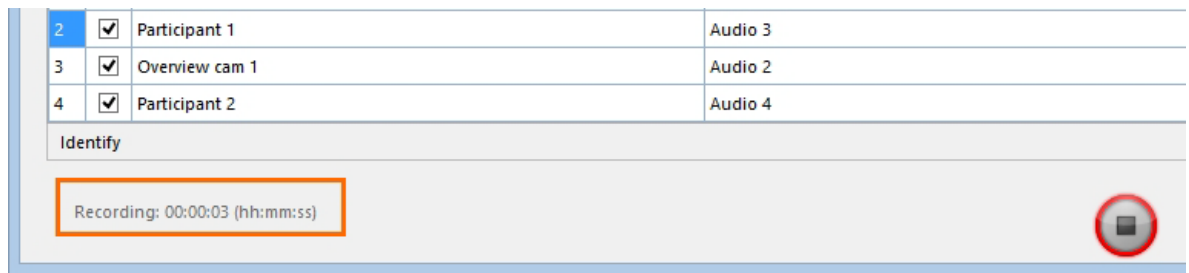
The button then changes into the **Stop Recording** button and the Recording timer starts running.
[](https://bookstack.noldus.com/uploads/images/gallery/2023-11/kYDKnDc2SuAbP52X-image.png)
Press the button again to stop recording. Recording stops automatically when you [specified a recording time ](https://bookstack.noldus.com/link/364#bkmrk-set-a-recording-time).
###
how to access the recorded videos
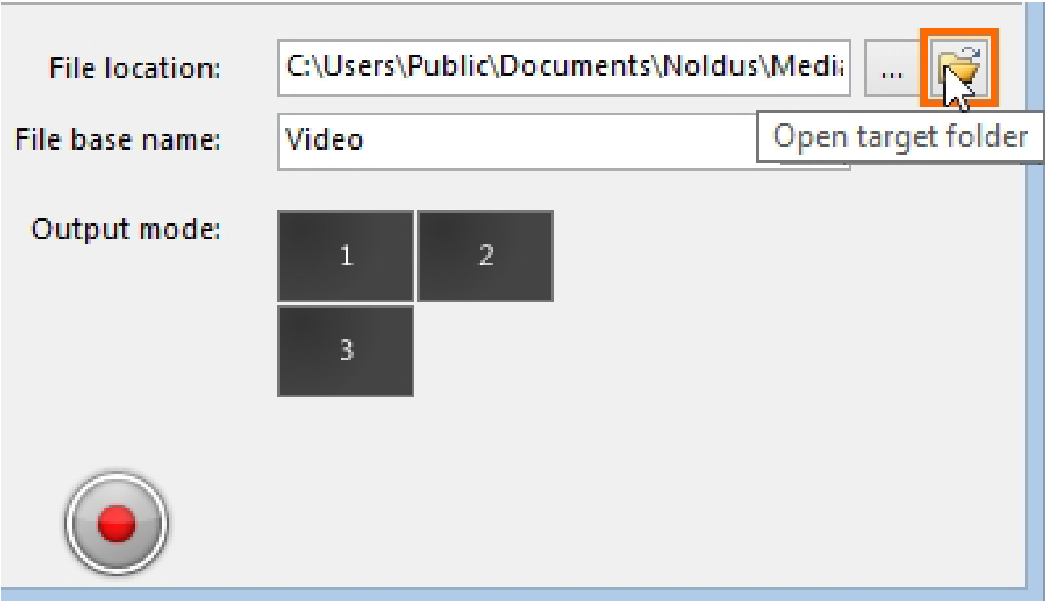
To quickly access the recorded videos, press the **Open target folder** button in the main MediaRecorder window.
[](https://bookstack.noldus.com/uploads/images/gallery/2023-11/AGuLkYaZWO2l21Ra-image.png)
The video files are stored in the default video file location, or the location you specified. See To select the [video file location](https://bookstack.noldus.com/link/364#bkmrk-to-select-the-video-).